
Flash Sale task vs Price Edit task
Use a Flash Sale task when shoppers should see a deal, and a Price Edit task when you only need the price to change. A Flash Sale task can only decrease prices and shows products as on sale. A Price Edit task can increase, decrease or set a new price, and it adds no compare-at price. Both change the product’s own price fields. Neither creates a discount code.
Side-by-side comparison
Section titled “Side-by-side comparison”| Flash Sale task | Price Edit task | |
|---|---|---|
| Purpose | Run a sale | Edit product prices |
| Dashboard card | Run flash sale | Edit product price |
| Price direction | Decrease only | Increase, decrease or set a new value |
| Field you set the rule on | Price or compare-at price | Price, compare-at price, or both |
| Product shown as “on sale” | Yes, in most themes | No, with the exception in the next row |
| Strikethrough price | Yes, in most themes. The original price and the sale price are shown together. | No, unless the product already has a compare-at price higher than its new price. A task on Price leaves an existing compare-at price as it is. |
| Flash sale badge | Yes, with Display flash sale badge on the Display settings tab | Not available |
| Countdown timer | Yes, with Display countdown timer on the Schedule tab | Not available |
| Stock progress bar | Yes, with Display stock progress bar on the Display settings tab | Not available |
| Targets | All products, specific products, specific collections, tags, product types | Same |
| Scheduling | One-time, weekly, monthly | Same |
| Reverts when the task ends or is set to Inactive | Yes | Yes |
The countdown timer requires a paid plan. Weekly and monthly schedules, and targeting by collection, tag or product type, are also on paid plans.
When to use a Flash Sale task
Section titled “When to use a Flash Sale task”Choose a Flash Sale task for anything a customer should recognise as a promotion:
- Black Friday, Cyber Monday and seasonal sales
- 24-hour or weekend flash sales
- Weekly or monthly deals that repeat on a schedule
- Clearance events with a firm end date
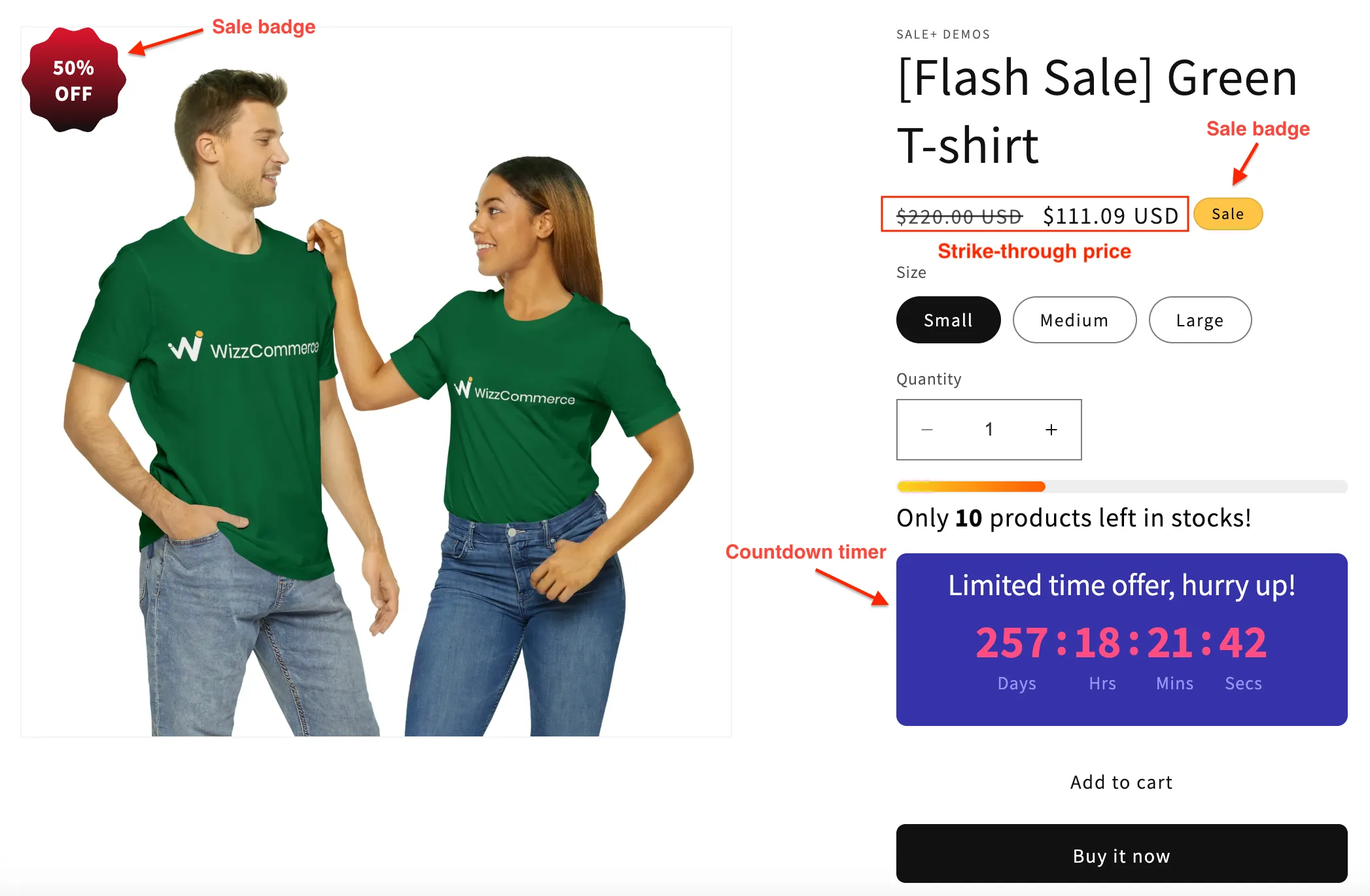
In most themes the product page shows the original price with a strikethrough next to the sale price, and many themes add their own sale badge. You can add a countdown to the end of the offer.
If you sell to customers in the EU or EEA, read the EU 30-day lowest price rule before you repeat a sale on the same products.
When to use a Price Edit task
Section titled “When to use a Price Edit task”Choose a Price Edit task for regular price maintenance, when the change is an amount, a percentage or a new value for a selection of products:
- Raising prices after a supplier cost increase
- Moving a product line to a new price point
- Adjusting compare-at prices across a collection
- Making a temporary price change that should not look like a sale

The product looks the same, with a new price. No strikethrough price shows, unless the product already had a compare-at price higher than its new price.
How each task treats price and compare-at price
Section titled “How each task treats price and compare-at price”This is the detail that catches people out. The examples below use a product priced at $320.
Flash Sale task with the discount on Price
Section titled “Flash Sale task with the discount on Price”The discount is calculated from the original price. During the sale, the original price becomes the compare-at price.
| Product before the sale | During a 50% flash sale | After the sale |
|---|---|---|
| Price $320, no compare-at price | Price $160, compare-at price $320 | Prices revert |
| Price $320, compare-at price $500 | Price $160, compare-at price $320 | The old compare-at price of $500 returns |
Flash Sale task with the discount on Compare-at price
Section titled “Flash Sale task with the discount on Compare-at price”The discount is calculated from the original compare-at price.
| Product before the sale | During a 50% flash sale |
|---|---|
| Price $320, compare-at price $500 | Price $250, compare-at price $500 |
| Price $320, no compare-at price | Price $320, compare-at price $640. A new compare-at price is added. |
Price Edit task
Section titled “Price Edit task”A Price Edit task changes the price according to the rule you set. You choose Increase price, Decrease price or New value, and whether the rule applies to Price, Compare-at-price or Both.
Example with a rule that increases the price by $100:
| Product before the task | While the task is active |
|---|---|
| Price $320, no compare-at price | Price $420 |
| Price $320, compare-at price $500 | Price $420, compare-at price $500 |
When either task ends
Section titled “When either task ends”When a Flash Sale task ends or is set to Inactive, both the price and the compare-at price are reverted, according to the revert rule you chose. A Price Edit task reverts the field it changed. A task with no end date keeps its new prices until it is set to Inactive, and deleting an Active task makes its change permanent. See How price reverts work.
Quick decision guide
Section titled “Quick decision guide”- Should the product look like it is on sale? Yes → Flash Sale task.
- Do you need to raise a price or set an exact new price? Yes → Price Edit task.
- Do you want a sale badge or a stock progress bar? Yes → Flash Sale task.
- Still unsure? Start with a Flash Sale task on three products and look at the storefront. Set it to Inactive before you run the full task.