Flash sale badge settings
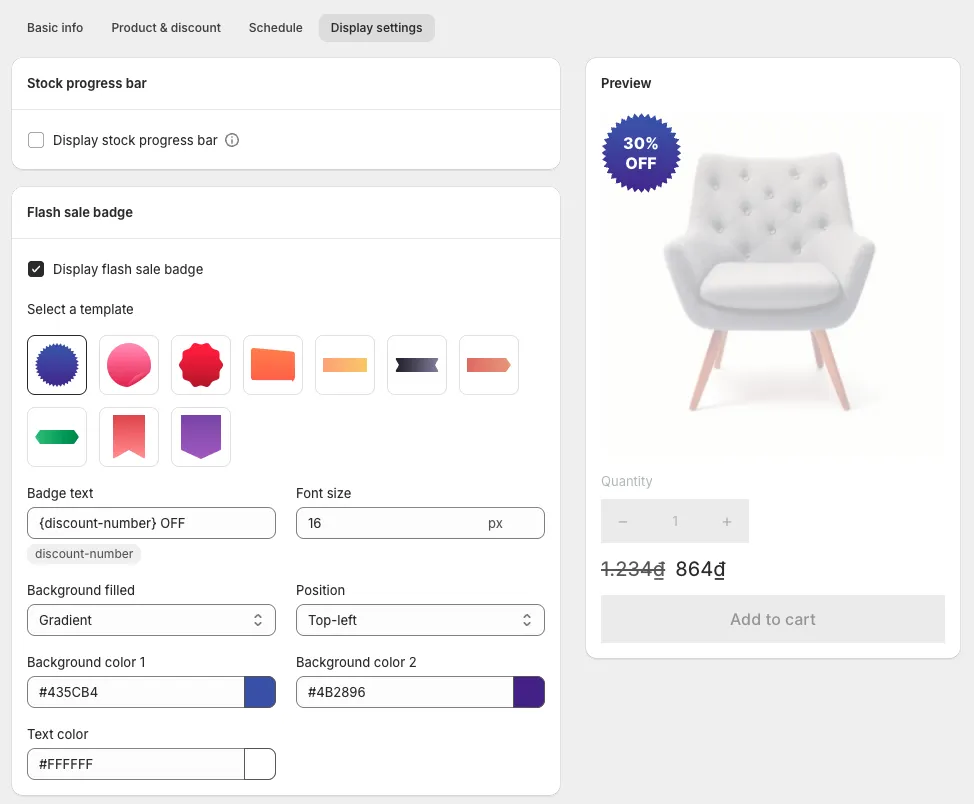
The flash sale badge is a label on the product image that marks products in a Flash Sale task. To show it, tick Display flash sale badge on the task’s Display settings tab. You choose its template, text, font size, position and colours in the same place. The badge does not need a paid plan.
The badge is part of Flash Sale tasks.
Set up the badge
Section titled “Set up the badge”- Open the Flash Sale task and go to the Display settings tab.
- Tick Display flash sale badge.
- Under Select a template, choose one of the badge designs.
- Edit the Badge text. Keep the
{discount-number}variable where the discount should appear, for example{discount-number} OFF. - Set the Font size and the Position, for example Top-left.
- Choose Background filled, the background colours and the Text color.
- Check the Preview on the right, then save the task. The preview uses a sample product and not your theme, so it does not show your real prices.
What you can customise
Section titled “What you can customise”| Setting | What it changes |
|---|---|
| Select a template | The badge shape and design |
| Badge text | The wording. {discount-number} is replaced by the discount. |
| Font size | How large the badge text is |
| Position | Where the badge sits on the product image |
| Background filled, Background color 1 and 2 | The badge fill and colours |
| Text color | The colour of the badge text |
What shoppers see on a Flash Sale product
Section titled “What shoppers see on a Flash Sale product”On most themes, a product in a Flash Sale task shows both prices: the original price with a strikethrough, and the sale price next to it. You can add two more signals from the task:
- The flash sale badge described on this page
- The countdown timer, which requires a paid plan
Tips: designing a badge
Section titled “Tips: designing a badge”These are our suggestions.
- Match one brand colour. A badge in your accent colour looks deliberate. A bright red badge on a muted store looks bolted on.
- Check contrast. Light text on a pale badge is unreadable on a phone in daylight.
- Do not cover the product. Pick a position that keeps the product image visible, so shoppers still see what is on sale.
- Keep it consistent. Use the same badge style across the tasks in one sale event, so shoppers read it as one sale.
Why can the badge percentage differ from the real discount?
Section titled “Why can the badge percentage differ from the real discount?”The badge shows the discount as you entered it in the task, and Override cents can make the real discount smaller or larger. The app calculates the discounted price, then replaces the cents with the ending you entered. A $100.00 product at 15% off is $85.00, and with an ending of .99 it becomes $85.99, which is about 14.01% off. On low prices the gap is bigger: $10.00 at 40% off with .99 is $6.99, about 30% off. Leave Override cents off if the badge must match the real discount. See Discount value and override cents.
Why do I see a sale badge the app did not create?
Section titled “Why do I see a sale badge the app did not create?”Many themes show their own sale badge on a product whose compare-at price is higher than its price. A Flash Sale task with the discount on Price sets a compare-at price on its products, so your theme’s badge can appear next to the app’s flash sale badge, or on its own if you did not tick Display flash sale badge. The app does not control the theme’s badge. Our advice: show one sale badge, not two, because two badges on one product image make the sale harder to read. If your theme has a setting for its own badge, turn it off, or leave Display flash sale badge unticked.
The badge is not showing
Section titled “The badge is not showing”- Check the app embed first.
- Is Display flash sale badge ticked in the task?
- Is the task Active and inside its schedule?
- Is the product in the task?
Still stuck? Email support@pricedip.app.