
What is PriceDip?
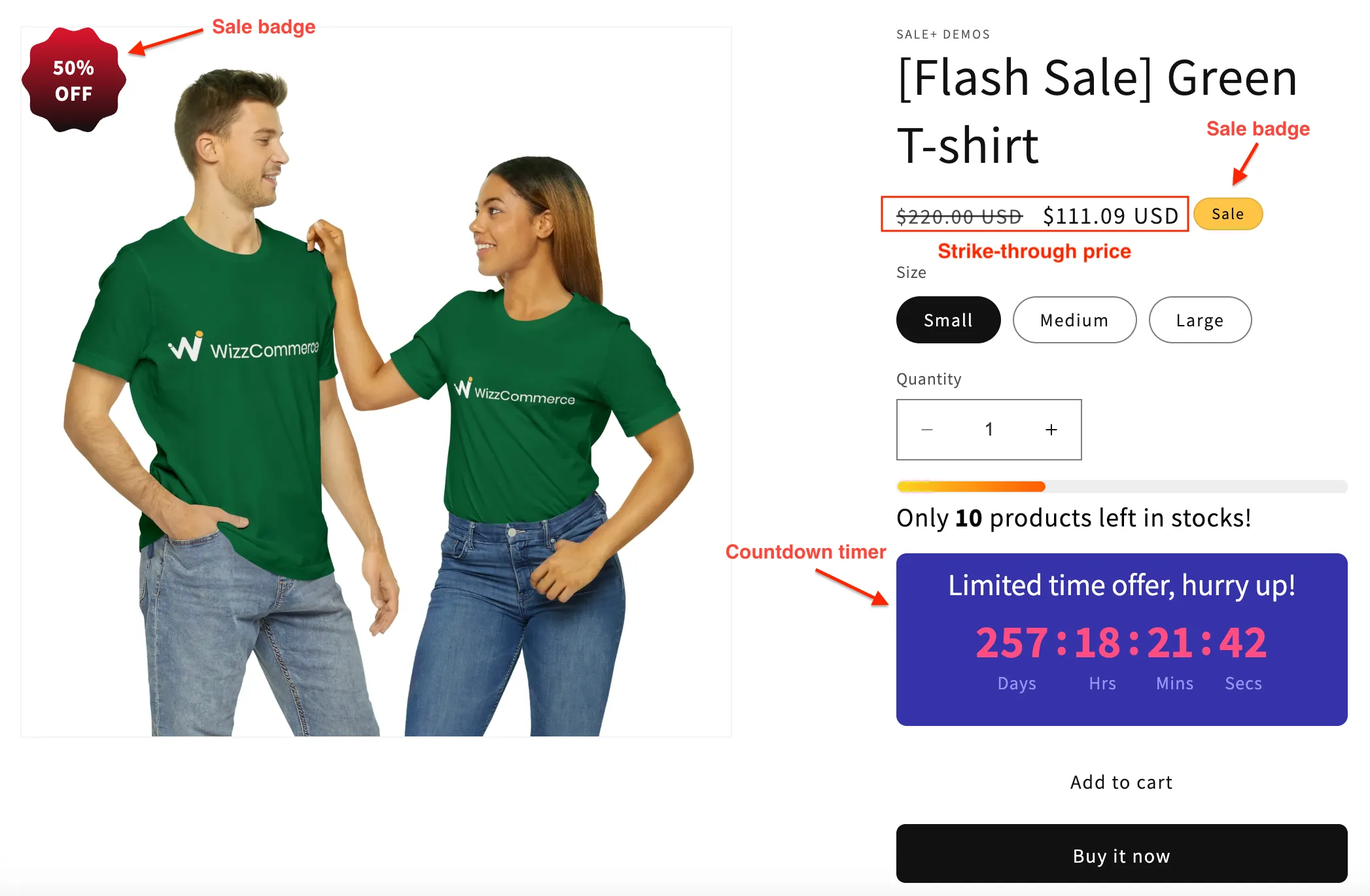
PriceDip is a Shopify app that schedules price changes and flash sales. It changes your product prices and compare-at prices at the start time you set and reverts them automatically at the end time. It does not create discount codes. In a flash sale, most themes show the original price with a strikethrough next to the sale price, before the shopper adds anything to the cart. Shopify calls that strikethrough price the compare-at price.
You describe a price change once, as a task: which products, what change, and when it starts and ends. PriceDip applies the change at the start time and reverts it at the end time.
What PriceDip does
Section titled “What PriceDip does”| Capability | What it does |
|---|---|
| Flash sales | Lower the price of products for a set period, with no discount codes. In most themes the product shows the original price with a strikethrough next to the sale price, so the savings are visible before the cart. |
| Bulk price editor | Change the price, the compare-at price or both across many products and variants in one task. |
| Scheduling | Set a start and end date and time, or switch a task on and off yourself. Paid plans add weekly and monthly recurring schedules. |
| Automatic revert | When a task ends, prices revert to their original values, so a sale does not keep giving away margin after its end time. A second revert rule keeps any price you edited outside the app during the task. |
| Product targeting | Apply a task to all products or specific products. Paid plans add specific collections, tags and product types. |
| Storefront widgets | Countdown timer (paid plans), stock progress bar, flash sale badge and promotion banner. |
| Dashboard metrics | See total revenue, conversion rate and the number of active tasks on the app dashboard. |

Why put a sale on the product price?
Section titled “Why put a sale on the product price?”A sale costs margin on every unit sold at the lower price, so it has to be seen to earn that back. Where the sale lives decides who sees it.
| Sale on the product price (Flash Sale task) | Shopify discount code or automatic discount | |
|---|---|---|
| Where shoppers see the savings | On the product page, in most themes as a strikethrough price | In the cart or at checkout |
| What Shopify’s product sync sends to Google Merchant Center | The sale price and the original price | The usual price |
| Who gets the savings | Every shopper | Shoppers who have the code or meet the conditions |
The trade-off: every shopper gets the lower price, including those who would have paid full price. Shopify’s own discounts are the better fit for an offer aimed at a specific audience, such as a code sent to subscribers. The strikethrough price must be one you really charged.
See what Google asks for before it shows a sale price. The full comparison is in Discount codes vs sale prices on Shopify.
The two task types
Section titled “The two task types”PriceDip has two task types. You start either one from a card on the app dashboard.
- A Flash Sale task runs a sale. It can only decrease prices, and in most themes it shows products as on sale. Start it from the Run flash sale card.
- A Price Edit task changes prices without adding a compare-at price, so no strikethrough price shows unless the product already had a higher one. It can increase prices, decrease them or set a new value. Start it from the Edit product price card.
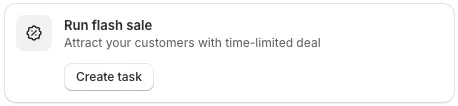
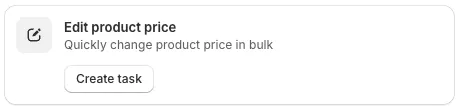
To choose between them, see Flash Sale task vs Price Edit task.
How prices are changed
Section titled “How prices are changed”PriceDip edits two Shopify fields on each product variant:
- Price: what the shopper pays.
- Compare-at price: the higher “was” price that most Shopify themes show as a strikethrough price.
These are the same two fields you edit by hand in Shopify admin. A task changes them at its start time, and reverts what it changed when the task ends or is set to Inactive.
For worked examples of what happens to each field, see How each task treats price and compare-at price.
Storefront widgets and your theme
Section titled “Storefront widgets and your theme”The countdown timer, stock progress bar and promotion banner are an easy one-click install through the app embed: switch it on in the theme editor. If any widget does not show, check the app embed first. See Enable the app embed.
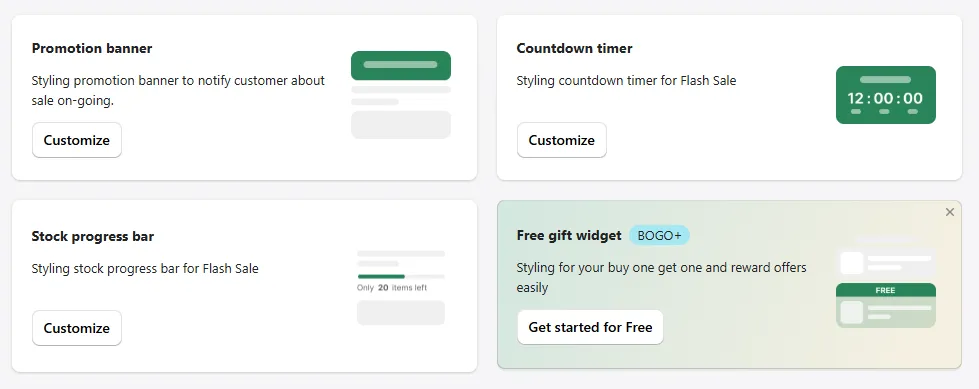
Widgets are styled in the app under Settings. The promotion banner, countdown timer and stock progress bar each have a card with a Customize button. The flash sale badge is styled inside the task. A widget can be customised on any plan that includes it: the flash sale badge, stock progress bar and promotion banner on every plan, and the countdown timer on paid plans.
What to know before you start
Section titled “What to know before you start”- Deleting an Active task makes its prices permanent. The prices stay as they are and are not reverted. Set the task to Inactive first if you want the old prices back.
- Uninstalling the app does not revert prices. A task reverts prices when it ends or when you set it to Inactive. Set every task to Inactive before you uninstall.
- Keep each product in one active task at a time. A second Flash Sale task stacks on the first.
- Give each task its own start and end time. A task can get stuck if two tasks start or end together. Shopify limits how many bulk updates can run at the same time, and the order they are applied in is not certain. See Staggering tasks.
- Large tasks take time. Allow about 5 minutes for every 3,000 product variants.
- The Free plan covers 50 product variants in total across your active tasks. See Plans and limits.
Who it is for
Section titled “Who it is for”PriceDip suits a Shopify store that wants its sales seen on the product page and ended automatically:
- Stores running Black Friday, seasonal and weekend sales that must end at a set time.
- Stores with occasional weekly or monthly deals that repeat on a schedule. Keep them occasional: a store that is always on sale teaches shoppers to wait.
- Stores that need to reprice a catalogue, for example after a supplier cost change.