How to add a Sale or % off badge and a countdown timer on Shopify
Many Shopify themes add a “Sale” badge by themselves to any product whose compare-at price, the strikethrough “was” price, is higher than its price. For a “% off” badge with your own wording, or a countdown timer to the end of the sale, you need an app, or a theme that has them built in. A Flash Sale task in PriceDip changes the price and compare-at price, reverts them when the sale ends, and can show both a badge and a timer on the products in the sale.
This page covers sale badges. Other product badges, such as “New” or “Sold out”, come from your theme or another tool.
What does Shopify give me without an app?
Section titled “What does Shopify give me without an app?”- A “Sale” badge. Many themes, including Shopify’s standard themes, show one on a product that has a compare-at price higher than its price. The wording and style are the theme’s. Check your theme settings for a badge option.
- A countdown timer. Shopify has no built-in sale countdown on product pages. Some themes include a countdown section, usually set by hand for one date.
Start there: give the product a compare-at price and see what your theme shows. See How to show a sale price on Shopify.
What does PriceDip add?
Section titled “What does PriceDip add?”A Flash Sale task changes the price and compare-at price of the products you choose and reverts them when it ends. On those products it can also show a flash sale badge and a countdown timer.
| Widget | What it shows | Where | Plan |
|---|---|---|---|
| Flash sale badge | A badge on the product image, such as “30% OFF” | Products in the Flash Sale task | All plans |
| Countdown timer | The time left until the end time of a task on a one-time schedule | Product pages of products in the task | Paid plans |
Both follow the task: they show while the sale is running and stop when it ends. Neither is available on a Price Edit task. A widget can be customised on any plan that includes it: the flash sale badge on every plan, and the countdown timer on paid plans.
How do I add a “% off” badge?
Section titled “How do I add a “% off” badge?”- Open the Flash Sale task and go to the Display settings tab.
- Tick Display flash sale badge.
- Choose a template and edit the Badge text. Keep
{discount-number}where the discount should appear, for example{discount-number} OFF. - Set the font size, position and colours, then save.
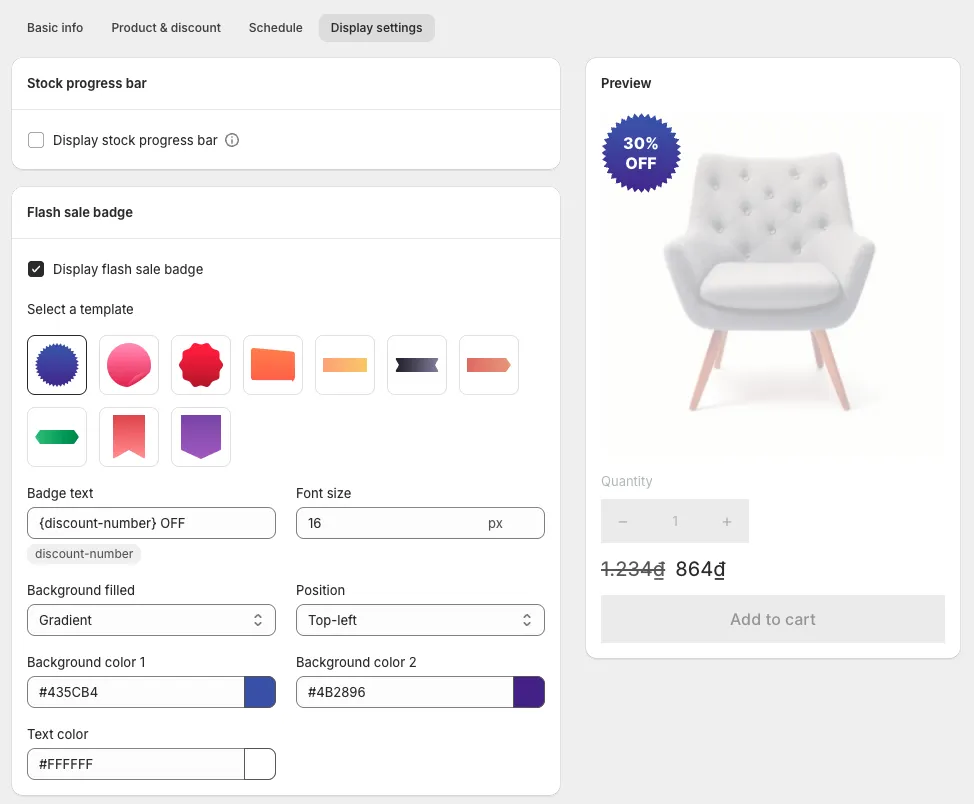
{discount-number} shows the discount as you entered it in the task: a percentage for a percentage discount, an amount for a fixed-amount discount. All settings are in Flash sale badge settings. If the badge does not show, check the app embed first.
How do I add a countdown timer?
Section titled “How do I add a countdown timer?”The countdown timer needs a paid plan and the app’s embed switched on in your theme.
- Switch on the app embed: see Enable the app embed.
- Open the Flash Sale task and go to the Schedule tab.
- Set the start date and time, tick Set end date and set the end date and time.
- Tick Display countdown timer and save.
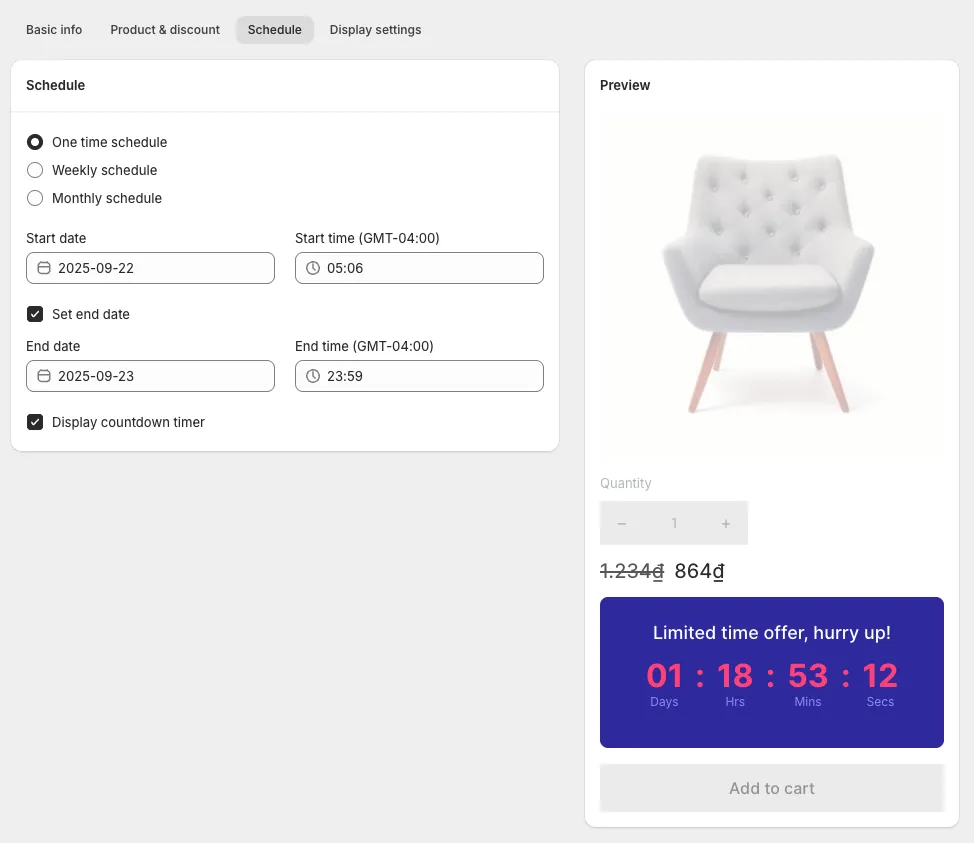
The timer counts down to the task’s end time, which is also when the prices revert. Styling and labels are in Countdown timer.
Will I end up with two badges?
Section titled “Will I end up with two badges?”You might. Your theme’s own “Sale” badge and the app’s flash sale badge are separate, and a Flash Sale task with the discount on Price sets a compare-at price, which triggers the theme’s badge too.
Our advice: show one. Turn off the theme’s badge if it has a setting for it, or leave Display flash sale badge unticked.
What makes a badge or a timer worth showing?
Section titled “What makes a badge or a timer worth showing?”Our advice:
- Only show a real deadline. Do not extend a sale after the timer runs out. Shoppers who bought to beat the deadline notice, and the next timer is believed less.
- Selling to the EU or EEA? A “% off” claim has to be worked out from the lowest price of the last 30 days. See EU 30-day lowest price rule. This is not legal advice.
- Show the savings, not just “Sale”. “30% OFF” tells the shopper something. “Sale” asks them to work it out.
- Mind Override cents. The badge shows the discount as entered. With a
.99ending, a product at 15% off can really be about 14% off. Leave Override cents unticked if the badge must match exactly. - Check it on a phone. A badge that looks small on a desktop image can cover the product on a narrow screen.
Frequently asked questions
Section titled “Frequently asked questions”How do I add a sale badge on Shopify?
Section titled “How do I add a sale badge on Shopify?”Give the product a compare-at price higher than its price. Many Shopify themes then show their own “Sale” badge. For a badge with your own text, such as a percentage off, use an app, or a theme that supports it. In PriceDip, tick Display flash sale badge in a Flash Sale task.
Does Shopify have a countdown timer?
Section titled “Does Shopify have a countdown timer?”Shopify has no built-in sale countdown timer on product pages. Some themes include a countdown section. PriceDip’s countdown timer shows on the product pages of products in a Flash Sale task and counts down to the end of the sale. It needs a paid plan.
Why does my product show two sale badges?
Section titled “Why does my product show two sale badges?”One badge is your theme’s and the other is the app’s flash sale badge. Many themes show their own badge on a product with a compare-at price higher than its price. Turn one of them off.
Does the countdown timer stop when the sale ends?
Section titled “Does the countdown timer stop when the sale ends?”The countdown timer belongs to the Flash Sale task and, on a one-time schedule, counts down to its end time. When the task ends, the prices revert and the timer stops showing.