
Scheduling and recurring sales
You schedule a PriceDip task by setting a start date and time and, optionally, an end date and time in its schedule settings. The task changes the prices you target from the start time and reverts them from the end time, in your store’s time zone, and it creates no discount codes. Paid plans can also repeat a task with a Weekly schedule or a Monthly schedule.
Schedule types
Section titled “Schedule types”| Schedule | What you set | Plan |
|---|---|---|
| One time schedule | A start date and time, and an optional end date and time | All plans |
| Weekly schedule | The days of the week, each with its start and end fields, and an optional end date. Select all seven days for a daily deal. | Paid plans |
| Monthly schedule | A start date and an end date, with times, which repeat each calendar month | Paid plans |
Every task has the same three schedule types.
Set a one-time schedule
Section titled “Set a one-time schedule”- Open the task and go to the Schedule tab.
- Select One time schedule.
- Choose the Start date and Start time.
- Tick Set end date, then choose the End date and End time.
- Save the task with Status set to Active.
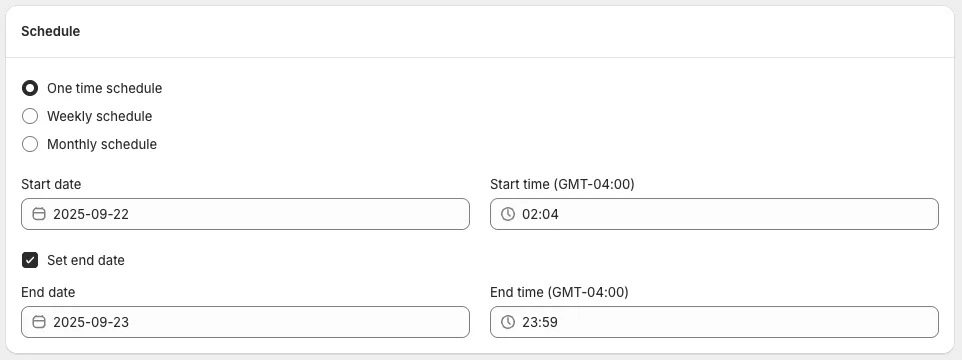
The prices change from the start time and revert from the end time.
The end date is optional. A task with no end date stays active until you set its Status to Inactive, which reverts the prices.
Set a weekly schedule
Section titled “Set a weekly schedule”A weekly schedule repeats the task on the days you select, each with its own start and end fields. The schedule’s end date is optional.
If you sell to customers in the EU or EEA, a weekly or monthly schedule can repeat a sale within 30 days, which changes which strikethrough price you may show: see EU 30-day lowest price rule. This is not legal advice.
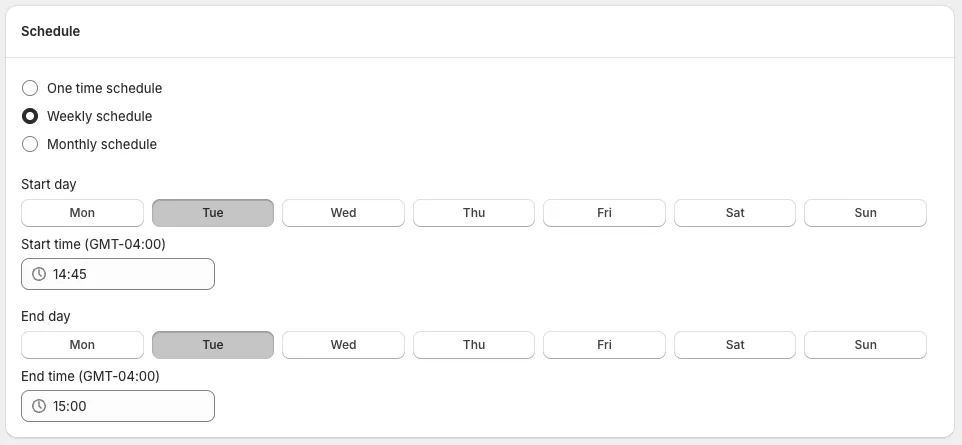
- On the Schedule tab, select Weekly schedule.
- Select a day of the week and set its start and end fields.
- To repeat on other days, select each one and set its start and end fields. Select up to all seven days for a daily deal.
- Save.
Example: start day Tuesday at 2:45 pm, end day Tuesday at 3:00 pm.
There is no separate daily schedule. For a deal that runs every day, select every day of the week. See Recurring daily or weekly deals.
Set a monthly schedule
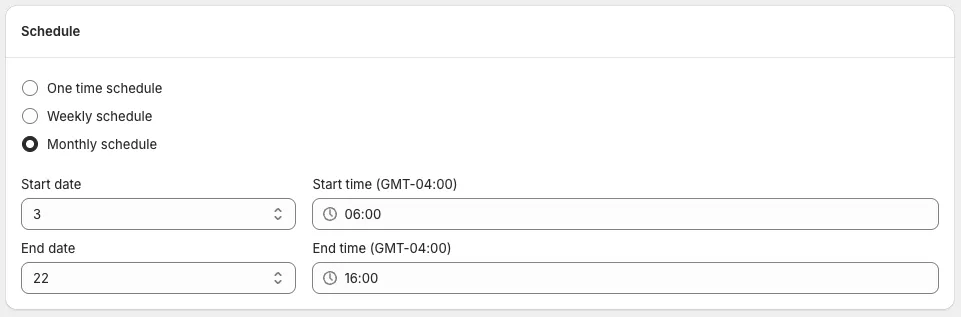
Section titled “Set a monthly schedule”A monthly schedule uses a start date and an end date in the month, with times, and repeats them each calendar month.
- On the Schedule tab, select Monthly schedule.
- Choose the Start date and Start time.
- Choose the End date and End time.
- Save.
Example: start on the 3rd at 6:00 am, end on the 22nd at 4:00 pm. The task activates on the 3rd at 6:00 am and ends on the 22nd at 4:00 pm, each calendar month.
Show a countdown timer
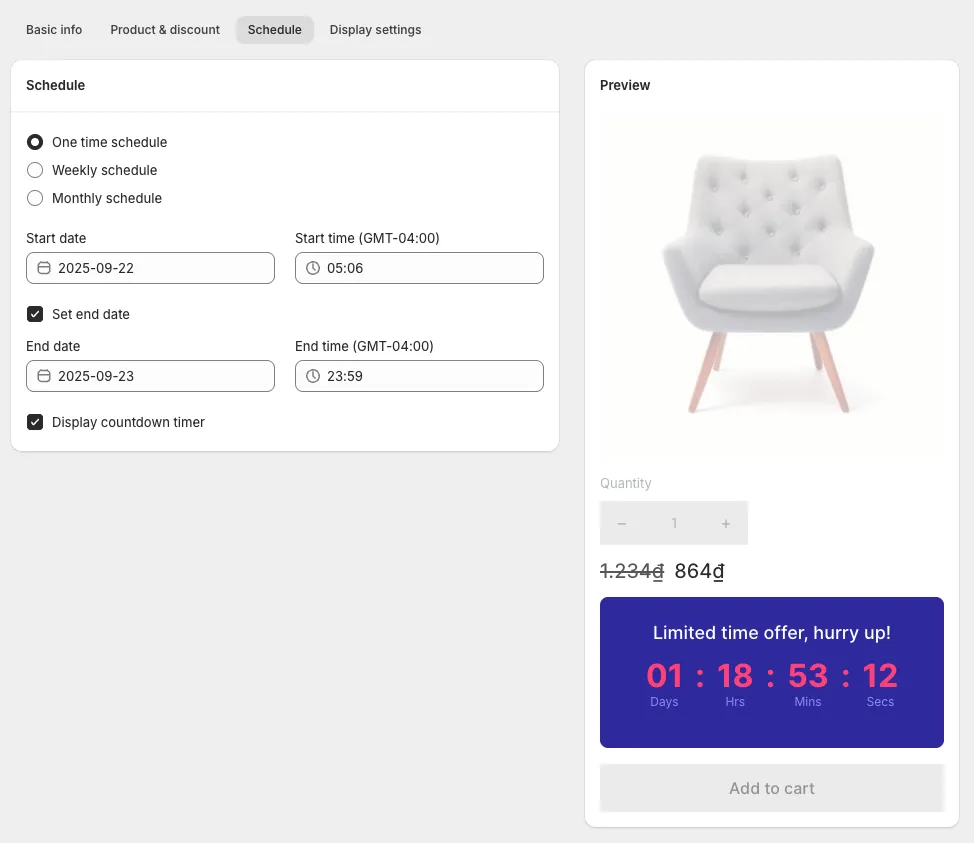
Section titled “Show a countdown timer”In a Flash Sale task, tick Display countdown timer on the Schedule tab. The countdown timer requires a paid plan, and on a one-time schedule it counts down to the task’s end time. See Countdown timer.
Time zones
Section titled “Time zones”The times you set are based on your store’s time zone. The time fields show the offset, for example Start time (GMT-04:00). A task set to end at 11:59 pm starts its revert at 11:59 pm store time, wherever your customers are.
Do not start or end two tasks at the same time
Section titled “Do not start or end two tasks at the same time”Give each task its own start and end time, with a gap that depends on the size of the earlier task: for every 3,000 product variants, it takes about 5 minutes to run the price change.
Our advice: add a 5-minute buffer. Example: task 1 has 3,000 variants and starts at 11:00 pm. Task 2 should start at 11:10 pm at the earliest: 5 minutes of processing plus a 5-minute buffer.
The same applies to end times; our estimate is that a revert takes about as long. For larger tasks and worked schedules, see Staggering tasks.
Starting or stopping a task by hand
Section titled “Starting or stopping a task by hand”The Status field in Task info switches a task on and off: Active is on, Inactive is off.
- To stop a sale before its end time, set Status to Inactive and save. Prices revert.
- While a task is applying its prices, its status shows as updating and the task cannot be changed or stopped until it finishes.
- Deleting an Active task does not revert its prices. They stay as they are and the change becomes permanent.
Allow for processing time
Section titled “Allow for processing time”A large task is not instant. At about 5 minutes per 3,000 product variants, a 9,000-variant task needs around 15 minutes. If a sale must be fully live at midnight, schedule the start early enough for the price change to finish. The revert at the end time takes time to apply too, so prices can return a little after the end time.