
How price reverts work, and what happens when sales overlap
When a task ends, or when you set it to Inactive, PriceDip reverts the products in the task. A Flash Sale task reverts both the price and the compare-at price, and a Price Edit task reverts the field it changed. You choose the revert rule when you build the task: Revert to original price, or Revert to the last price edited. Nobody needs to be online for it to happen.
The two revert rules
Section titled “The two revert rules”You pick one under Set revert rules when you build the task.
| Revert rule | What it does |
|---|---|
| Revert to original price | Restores the original price. If the price was edited outside the app while the task was running, that edit is discarded. |
| Revert to the last price edited | Keeps a price that was edited outside the app while the task was running. The edited price is left unchanged when the task ends. |
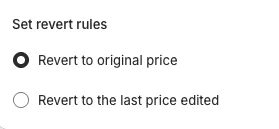
The two rules only differ when a price is edited outside the app, for example by hand in Shopify admin, between the start and the end of the task. Say a product is $100 and a task discounts it to $70. During the task you change the price to $80 in Shopify admin. With Revert to original price the product returns to $100 when the task ends. With Revert to the last price edited it stays at $80.
Our advice: choose Revert to original price unless you expect to correct prices by hand during a sale and want those corrections to stick.
Worked examples: a 50% flash sale
Section titled “Worked examples: a 50% flash sale”What a Flash Sale task changes depends on the field you chose for the discount.
| Discount field | Before the task | During the task |
|---|---|---|
| Price | Price $320, no compare-at price | Price $160, compare-at price $320 |
| Price | Price $320, compare-at price $500 | Price $160, compare-at price $320 |
| Compare-at price | Price $320, compare-at price $500 | Price $250, compare-at price $500 |
| Compare-at price | Price $320, no compare-at price | Price $320, compare-at price $640 (a new compare-at price is added) |
When the task ends, both fields are reverted. In the second row, the old compare-at price of $500 returns after the sale ends.
What triggers a revert
Section titled “What triggers a revert”- The scheduled end time arrives. This is the normal case.
- You set the task to Inactive. Use this to end a sale early, or to end a task that has no end date. A task with no end date stays active until you do this.
When several tasks change the same product
Section titled “When several tasks change the same product”Keep each product in one active task at a time. Multiple tasks can run at the same time, but when two sales overlap on the same product, the results are not what you would expect:
- A second Flash Sale task stacks. Its discount is applied to the price already discounted by the first task.
- A Price Edit decrease has no effect on a product while a Flash Sale task is active on it.
- Reverting the second Flash Sale task undoes both. The product returns to its original price, the price from before the first task ran, even though the first task has not ended.
The app’s own example shows the same revert behaviour:
| Step | Price of Product A |
|---|---|
| Original price | $100 |
| Flash Sale 1 runs (50% discount) | $50 |
| Price Edit 1 runs (+$20) | $70 |
| Revert | $100, the value before the first task |
If a product has to move from one sale to another, let the first task end and revert before the next one starts, and give each task its own end time. A task can get stuck if two tasks start or end at the same time. See Staggering tasks.
How long a revert takes
Section titled “How long a revert takes”A revert is a bulk price change like any other, so allow the same time: for every 3,000 product variants, it takes about 5 minutes to run the price change. On a large task, give it that long before you check prices.
If a price looks wrong after a revert
Section titled “If a price looks wrong after a revert”Contact support@pricedip.app straight away. Say which task and which products are affected, and do not start new tasks on those products until support replies.
When a revert cannot find a product
Section titled “When a revert cannot find a product”A task reverts the products it can find in its target. When a collection is the target, a product that has left the collection is not found, so it keeps its sale price. This happens with an automated collection with conditions based on price, where the price change removes the product, and with any collection a product is removed from by hand while the task is running.
Our advice is to target something a price change cannot alter, such as a tag (paid plans) or specific products, and to leave a targeted collection unchanged until the task has reverted. See Tasks on automated collections.
Verify a revert
Section titled “Verify a revert”After any important sale:
- Wait for the processing time to pass.
- Open five products from different parts of the task in Shopify admin.
- Confirm the price and the compare-at price are what you expect.
- Open the same products on the storefront and confirm they show the price you expect.
Before a big event, rehearse: run a 30-minute task on three products a week ahead and watch it revert.