
Stock progress bar
The stock progress bar tells shoppers how much stock is left on a product in a Flash Sale task. To show it, tick Display stock progress bar on the task’s Display settings tab and enter a Stock inventory number. It appears on the product pages of the products selected in that task. The stock progress bar is available on every plan, including the Free plan.
Where it appears
Section titled “Where it appears”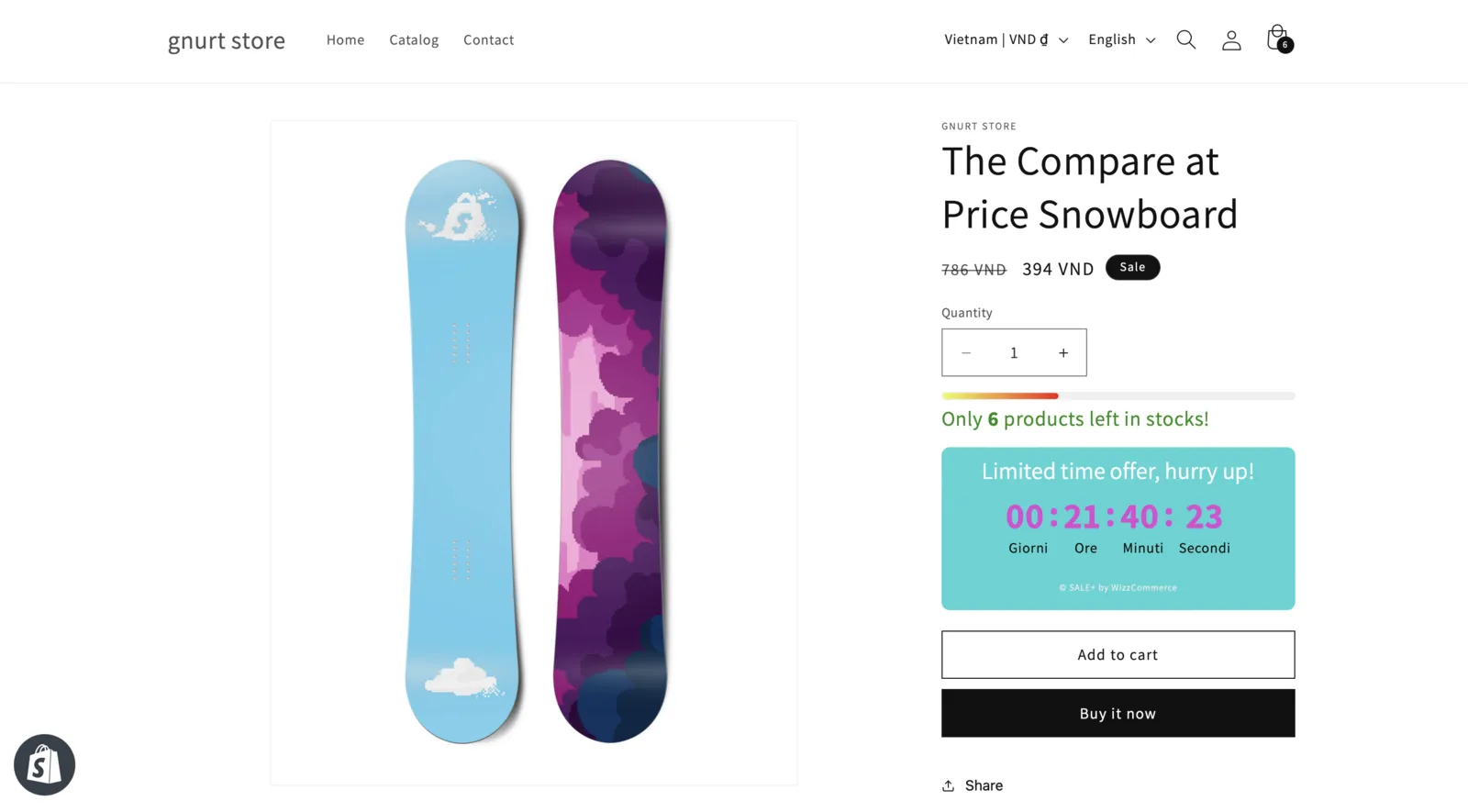
- On the product pages of products selected in a Flash Sale task
- Next to the product details
- Only when Display stock progress bar is ticked in that task
The bar needs the app embed to be on. If the bar does not show, check the embed first.
Turn it on for a task
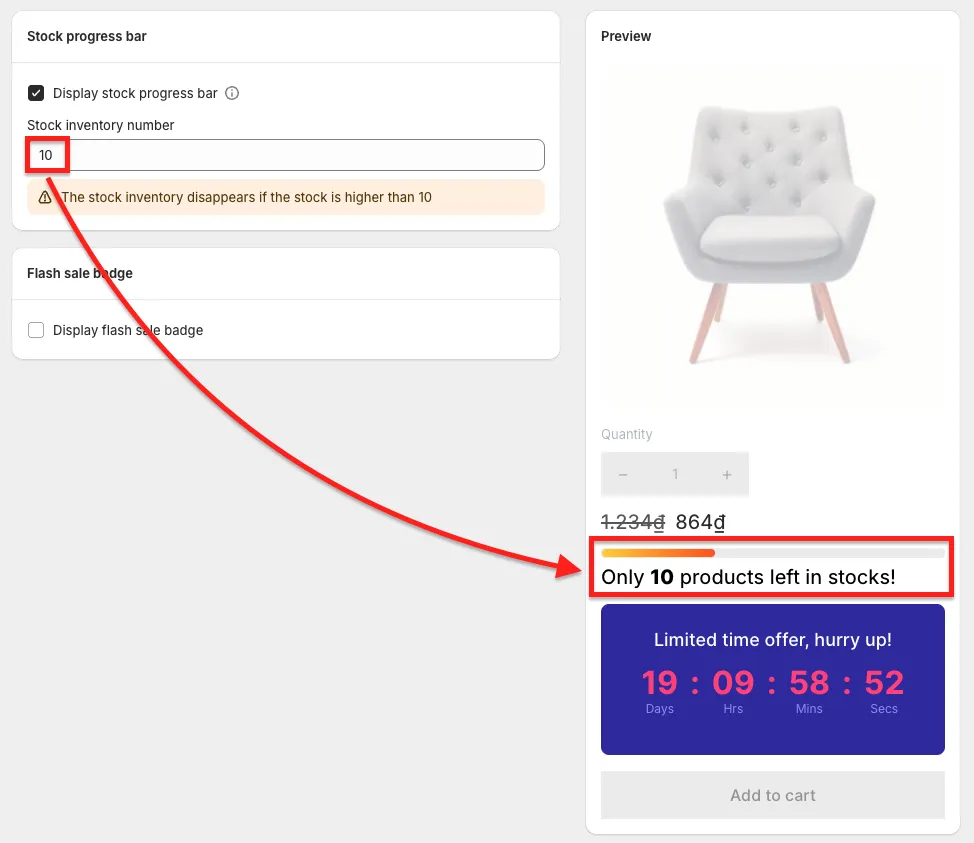
Section titled “Turn it on for a task”- Open the Flash Sale task and go to the Display settings tab.
- Tick Display stock progress bar.
- Enter the Stock inventory number.
- Read the note the app shows under the field. It tells you the stock level above which the bar is hidden.
- Check the Preview on the right, then save the task.
Customise the look
Section titled “Customise the look”Customising the stock progress bar is included in every plan, including Free.
-
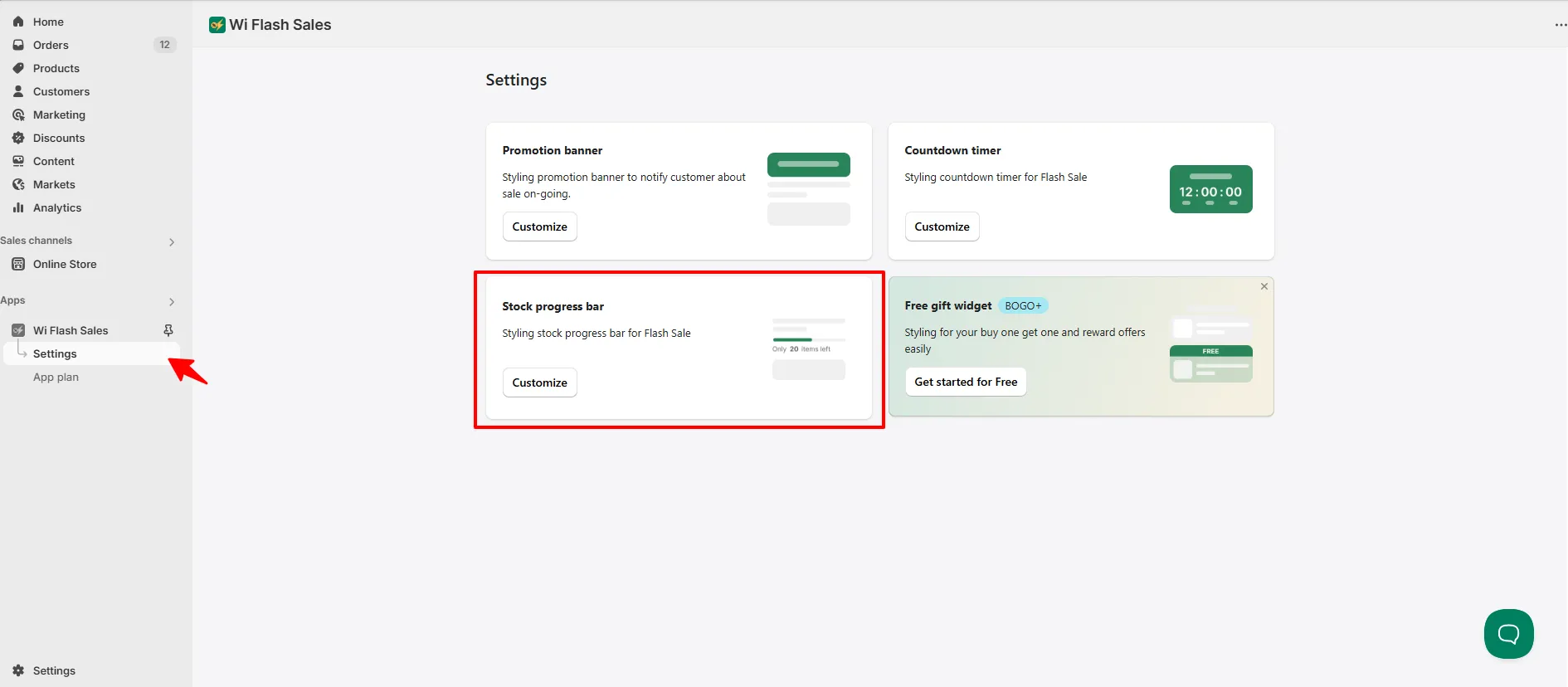
In the app menu, open Settings.
-
On the Stock progress bar card, click Customize.
-
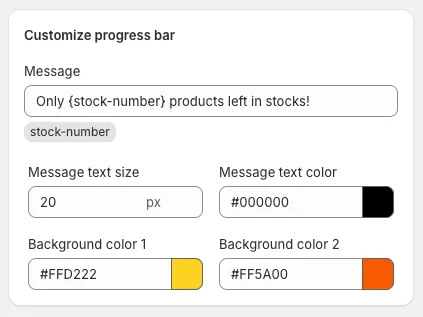
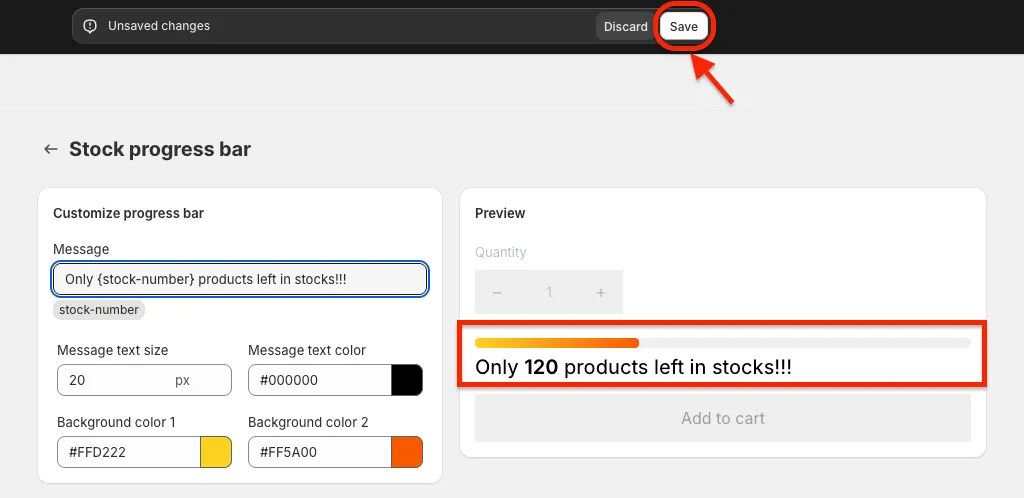
Under Customize progress bar, edit the Message. Keep the
{stock-number}variable where the number should appear, for exampleOnly {stock-number} left in stock. Our advice: reword the default message, “Only {stock-number} products left in stocks!”, so it reads naturally to shoppers. -
Set the Message text size, the Message text color and the two bar colours, Background color 1 and Background color 2.
-
Check the Preview on the right side of the page.
-
Click Save.
| Setting | What it changes |
|---|---|
| Message | The text shown with the bar. {stock-number} is replaced by the number. |
| Message text size | How large the message is |
| Message text color | The colour of the message |
| Background color 1 and 2 | The colours of the bar |
Tips: when to use it, and when not to
Section titled “Tips: when to use it, and when not to”This is our advice on using scarcity well.
Use it on:
- End-of-line products that will not be restocked
- Limited runs and seasonal stock
- Flash deals with a set quantity
Leave it off:
- Evergreen products you restock continuously. A “nearly gone” message next to a product that is always available costs you credibility.
The bar is not showing
Section titled “The bar is not showing”- Is the product’s stock higher than the Stock inventory number, or is the product out of stock? The bar is hidden in both cases.
- Is Display stock progress bar ticked in the task itself? Styling the bar in Settings does not switch it on.
- Is the app embed on for the live theme?
- Is the task a Flash Sale task that is Active and inside its schedule?
Still stuck? Email support@pricedip.app.