How to show a sale price on Shopify (before and after price)
To put items on sale on Shopify and show the sale price, put the original price in the product’s Compare-at price field and the new, lower price in its Price field. Most themes then show the original price crossed out next to the new one, on the product itself, with no discount code. Shopify calls the strikethrough “before” price the compare-at price.
What does a sale price look like to a shopper?
Section titled “What does a sale price look like to a shopper?”| Price field | Compare-at price field | What most themes show | |
|---|---|---|---|
| Before the sale | $40.00 | Empty | $40.00 |
| During the sale | $30.00 | $40.00 |
The strikethrough price appears only when the compare-at price is higher than the price. Where it shows, how it looks and whether a “Sale” label is added depend on your theme. See Sale badge and countdown timer.
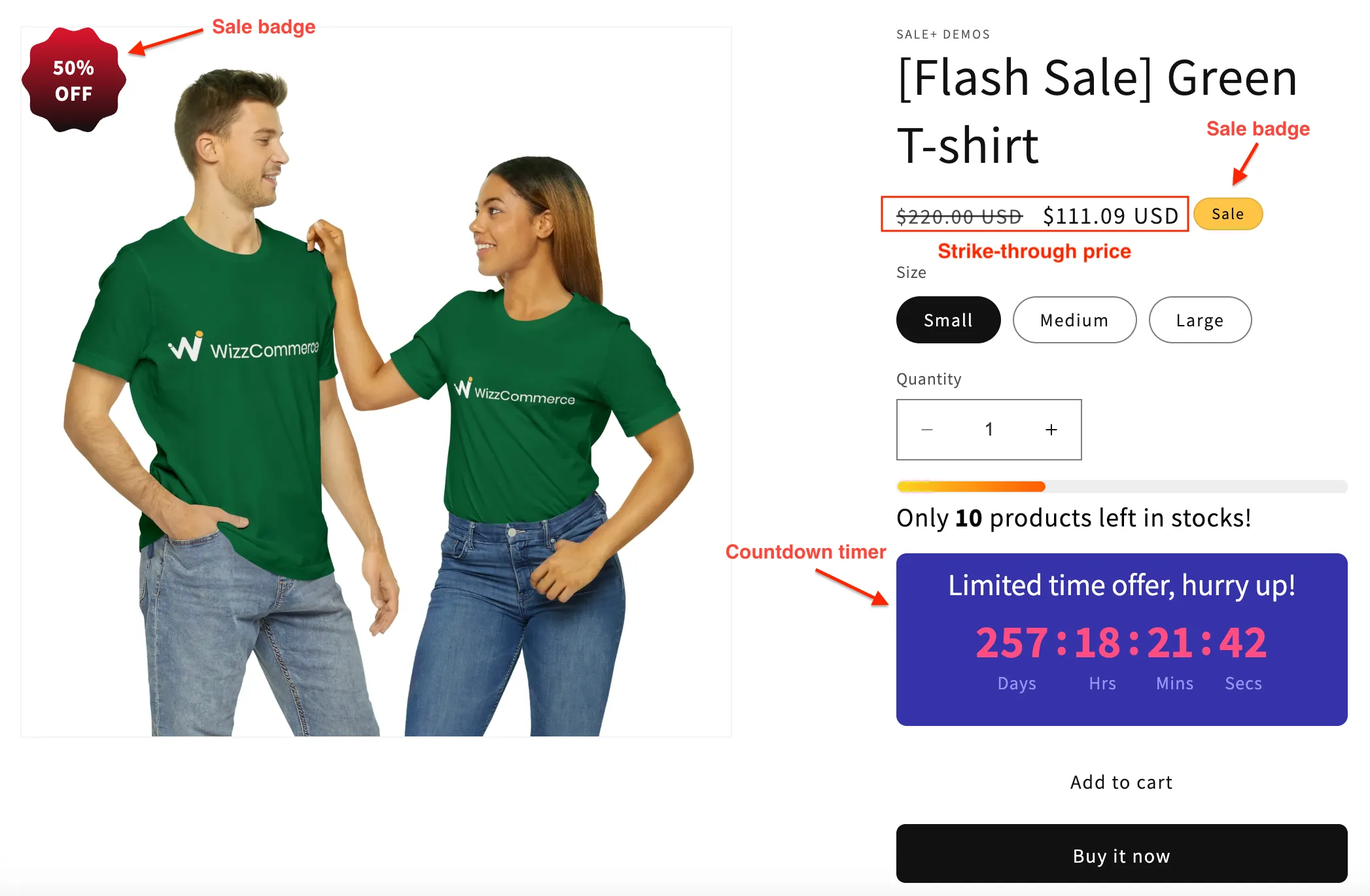
In this example the strikethrough price comes from the product’s own price fields, and the “Sale” label beside it is the theme’s. The badge on the image, the stock progress bar and the countdown timer are PriceDip widgets. Shopify and your theme do not add them.
How do I put one item on sale in Shopify?
Section titled “How do I put one item on sale in Shopify?”In Shopify admin, at the time of writing:
- Go to Products and open the product. If it has variants, such as sizes, open a variant from the Variants section. Each variant has its own two price fields.
- In the Price section, find Compare-at price. If you do not see the field, click Compare at. If it already holds a price, note it first, because you will overwrite it.
- Type the original price into Compare-at price. This is the “before” price.
- Type the lower sale price into Price. This is what the shopper pays.
- Click Save, and repeat for each variant.
- Open the product on your store and check that the original price shows as a strikethrough price.
How do I put many items on sale at once?
Section titled “How do I put many items on sale at once?”Shopify’s bulk editor shows the two fields for many products in a grid.
- Go to Products and tick the products.
- Click Bulk edit.
- If the Compare-at price column is not shown, click Columns and add it.
- Type the original price and the new price for each row, then click Save.
You still type every price, and you repeat the work in reverse when the sale ends. More on this in How to bulk edit prices and compare-at prices on Shopify.
Where does PriceDip help?
Section titled “Where does PriceDip help?”PriceDip on the Shopify App Store is an app that fills in the same two fields for you. It changes your prices and compare-at prices on a schedule and reverts them when the sale ends. No discount codes are involved.
- Many products at once. One rule, such as 25% off, applies to every product you choose.
- A start and an end time. The sale starts at the time you set, in your store’s time zone, and at the end time the prices revert.
In the app this is a Flash Sale task. Follow Quick Start to set one up. Stores on Shopify Plus also have Launchpad, Shopify’s own tool for scheduled sale events.
Should I use a discount code instead?
Section titled “Should I use a discount code instead?”A Shopify discount code or automatic discount is applied in the cart or at checkout. The price on the product does not change, so no strikethrough price shows there. That is why a discount does not show on the product page.
With a sale price, shoppers see the lower price and the strikethrough original price on the product, before they add anything to the cart, and there is no code to find or type. The trade-off is that every shopper gets the lower price, including those who would have paid full price. A code fits better for an offer meant for one group, such as newsletter subscribers. The full comparison is in Discount codes vs sale prices on Shopify.
What should the “before” price be?
Section titled “What should the “before” price be?”Our advice, not legal advice: the strikethrough price should be a price you really charged, recently. A shopper who saw the product at $30 last week and now sees “was $40” stops trusting your prices, and many countries have rules against an inflated “was” price. The EU has a specific one: see EU 30-day lowest price rule.
Frequently asked questions
Section titled “Frequently asked questions”How do I put items on sale on Shopify?
Section titled “How do I put items on sale on Shopify?”Put the original price in the product’s Compare-at price field and the lower sale price in its Price field, then save. Most Shopify themes then show the original price with a strikethrough next to the new one. For many products, use Shopify’s bulk editor or an app that sets both fields for you.
Why is my sale price not showing a strikethrough price?
Section titled “Why is my sale price not showing a strikethrough price?”A strikethrough price shows only when the product’s compare-at price is higher than its price. Check both fields on each variant first. If they are right, check your Shopify Markets pricing, then the way your theme displays prices.
Does Shopify end a sale price automatically?
Section titled “Does Shopify end a sale price automatically?”A sale price you typed into Shopify admin stays until you edit the product again. Stores on Shopify Plus can schedule a sale event with Launchpad. On other plans, an app such as PriceDip can set the sale price at a start time and revert it at an end time.