
How to schedule a price change on Shopify
On most plans Shopify has no built-in way to schedule a price change. To schedule one, use Launchpad if you are on Shopify Plus, or an app that changes the price at a start time and reverts it at an end time. A price you edit in Shopify changes at once and stays until you edit it again.
What can Shopify do on its own?
Section titled “What can Shopify do on its own?”| Shopify tool | What it does | Scheduled? |
|---|---|---|
| Editing a product, the bulk editor, a CSV import | Changes the price and compare-at price | No. The change is immediate and nothing reverts it |
| Discount codes and automatic discounts | Lower what the shopper pays in the cart or at checkout. The product’s price does not change | Yes, with start and end dates |
| Launchpad | Schedules sale events, including price changes | Yes. Shopify Plus only |
If a discount with dates covers what you need, it is the simplest route. It will not change the price shown on the product: see Discount codes vs sale prices on Shopify.
How do I change prices by hand on a set date?
Section titled “How do I change prices by hand on a set date?”Our advice: for a few products, a calendar reminder and the bulk editor cost nothing and are enough.
- Before the date, write down the new price of each product. Export the products to a CSV file from the Products page so you keep the old prices too.
- On the date, go to Products, tick the products and click Bulk edit.
- Type the new prices and save.
- If the change is temporary, repeat the steps on the end date with the old prices.
The weak point is the second edit. It is the one made at midnight, or forgotten.
How do I schedule a price change with PriceDip?
Section titled “How do I schedule a price change with PriceDip?”PriceDip on the Shopify App Store is an app that changes prices and compare-at prices on a schedule and reverts them automatically. It does not create discount codes. For regular price maintenance, such as a price increase on a date you choose, create a Price Edit task. It fits a change that is an amount, a percentage or a new value for a selection of products.
-
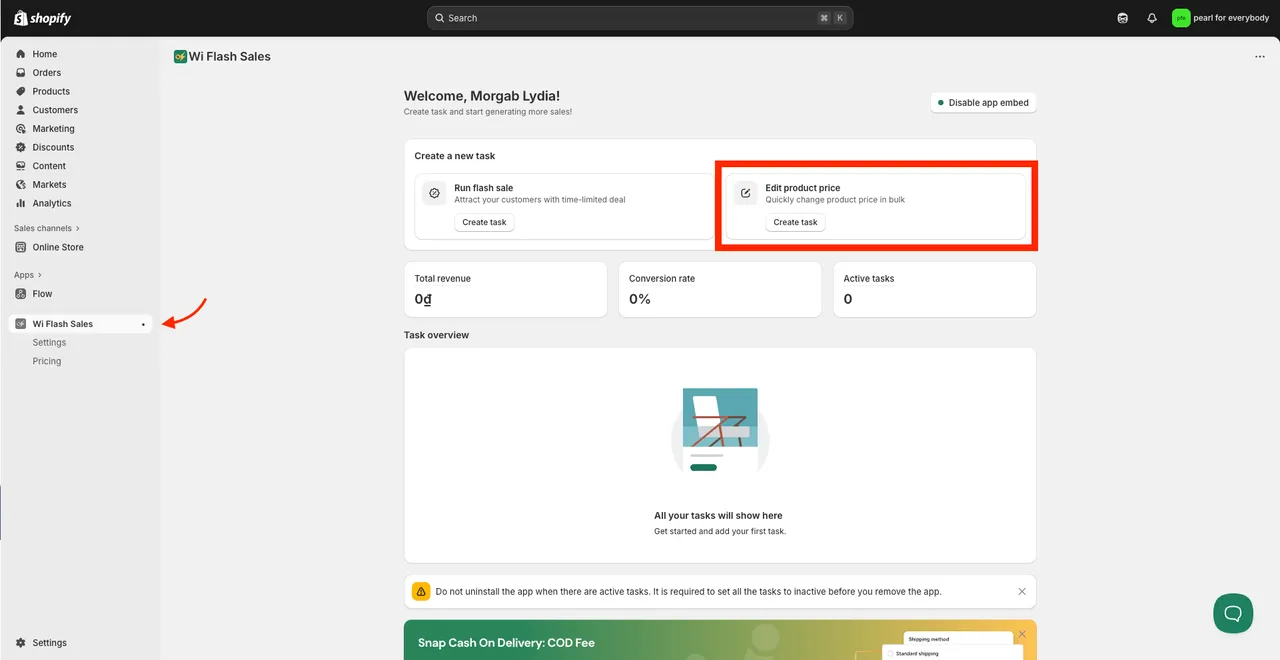
On the app dashboard, find the Edit product price card and click Create task.
-
Give the task a Name and set its Status to Active.
-
Choose the Target items: all products or specific products. Collections, tags and product types need a paid plan. The Free plan covers 50 product variants in total across your active tasks.
-
Choose Increase price, Decrease price or New value, the field to change (Price, Compare-at-price or Both), and a percentage or an amount.
-
Under Set revert rules, choose Revert to original price to discard any edit made outside the app during the task, or Revert to the last price edited to keep it.
-
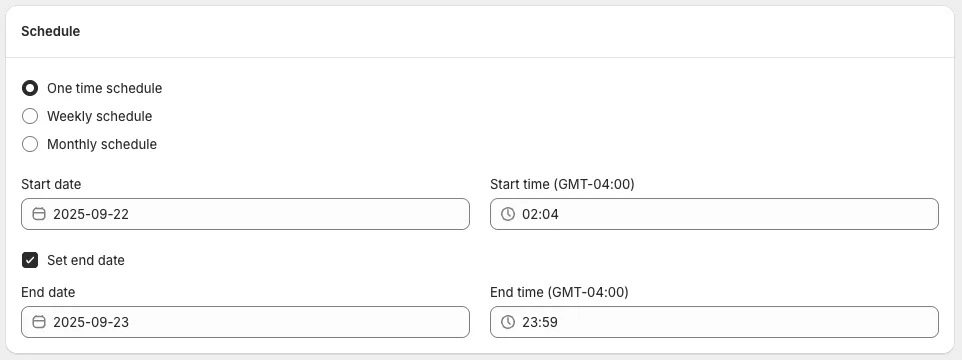
Select One time schedule and set the Start date and Start time. Tick Set end date and set the end date and time, if the change should end.
-
Save. A task saved as Active with a future start date is scheduled and starts at that time. A preview is available from the task once it has been created.
For a change that repeats, choose Weekly schedule or Monthly schedule instead (paid plans). Times use your store’s time zone. Full settings are in Price Edit tasks.
What happens at the end date?
Section titled “What happens at the end date?”From the end time the task reverts the field it changed, and the revert takes time to apply. A task on Price puts the price back and leaves the compare-at price alone.
With no end date, the new prices stay until you set the task’s Status to Inactive, which reverts them.
When is Shopify’s bulk editor the better fit?
Section titled “When is Shopify’s bulk editor the better fit?”A Price Edit task covers a change that is an amount, a percentage or a new value for a selection of products. If your pricing is more complicated than that, use Shopify’s bulk editor and the steps above.
What will shoppers see after the price change?
Section titled “What will shoppers see after the price change?”They see the new price. A compare-at price already on the product stays as it is, and in most themes it shows as a strikethrough price when it is higher than the new price. To run a sale with a strikethrough price, see How to run a flash sale on Shopify.
How far ahead should I schedule?
Section titled “How far ahead should I schedule?”Allow for processing time. For every 3,000 product variants, a price change takes about 5 minutes. Our advice: for 6,000 variants, which take about 10 minutes, and a 9:00 am deadline, start at 8:45 am to leave a margin. While a task is applying its prices it cannot be changed or stopped. Give each task its own start and end time: see Staggering tasks.
Frequently asked questions
Section titled “Frequently asked questions”Can Shopify schedule a price change?
Section titled “Can Shopify schedule a price change?”Shopify cannot schedule a product price change on most plans. Editing a product, the bulk editor and a CSV import all change prices immediately. Shopify Plus stores have Launchpad for scheduled sale events, and discounts on any plan can have start and end dates, but a discount does not change the product’s price.
How do I schedule a price increase on Shopify?
Section titled “How do I schedule a price increase on Shopify?”Create a Price Edit task in PriceDip, choose Increase price, enter a percentage or an amount, and set the start date and time. Save it as Active with a future start date, and the prices start changing at that time in your store’s time zone. With no end date the increase stays until the task is set to Inactive, which reverts it. If your pricing is more complicated than an amount, a percentage or a new value for a selection of products, use Shopify’s bulk editor instead.
Does a scheduled price change revert automatically?
Section titled “Does a scheduled price change revert automatically?”A PriceDip task starts reverting the prices at its end time, and the revert takes a little time to apply. A task with no end date reverts when you set it to Inactive. A price you change in Shopify admin does not revert by itself.
Which time zone does a scheduled price change use?
Section titled “Which time zone does a scheduled price change use?”A PriceDip schedule uses your store’s time zone. The time fields show the offset, for example GMT-04:00.