
Price Edit tasks
A Price Edit task changes product prices in bulk on a schedule and reverts them when it ends. It is built for regular price maintenance, such as a price increase on a date you choose. It can raise or lower the price, the compare-at price or both, by a percentage or an amount, or set a new value for a selection of products. It creates no discount codes. For pricing more complicated than that, use Shopify’s bulk editor. You create a Price Edit task from the Edit product price card on the app dashboard. For the Shopify side of scheduling, see How to schedule a price change on Shopify.
Settings at a glance
Section titled “Settings at a glance”| Section | Setting | Options |
|---|---|---|
| Task info | Status | Active turns the task on and Inactive turns it off |
| Task info | Name | A label for your task list |
| Configuration | Target items | All products, specific products, specific collections, tags or product types |
| Configuration | Change rule | Increase price, Decrease price or New value |
| Configuration | Field to change | Price, Compare-at-price or Both |
| Configuration | How to change it | By percentage or by amount, plus the value |
| Configuration | Override cents | Sets the same charm price or price code ending, such as .99, on every product’s price |
| Configuration | Set revert rules | Revert to original price or Revert to the last price edited |
| Schedule | Schedule type | One time schedule, Weekly schedule or Monthly schedule |
Create a Price Edit task
Section titled “Create a Price Edit task”-
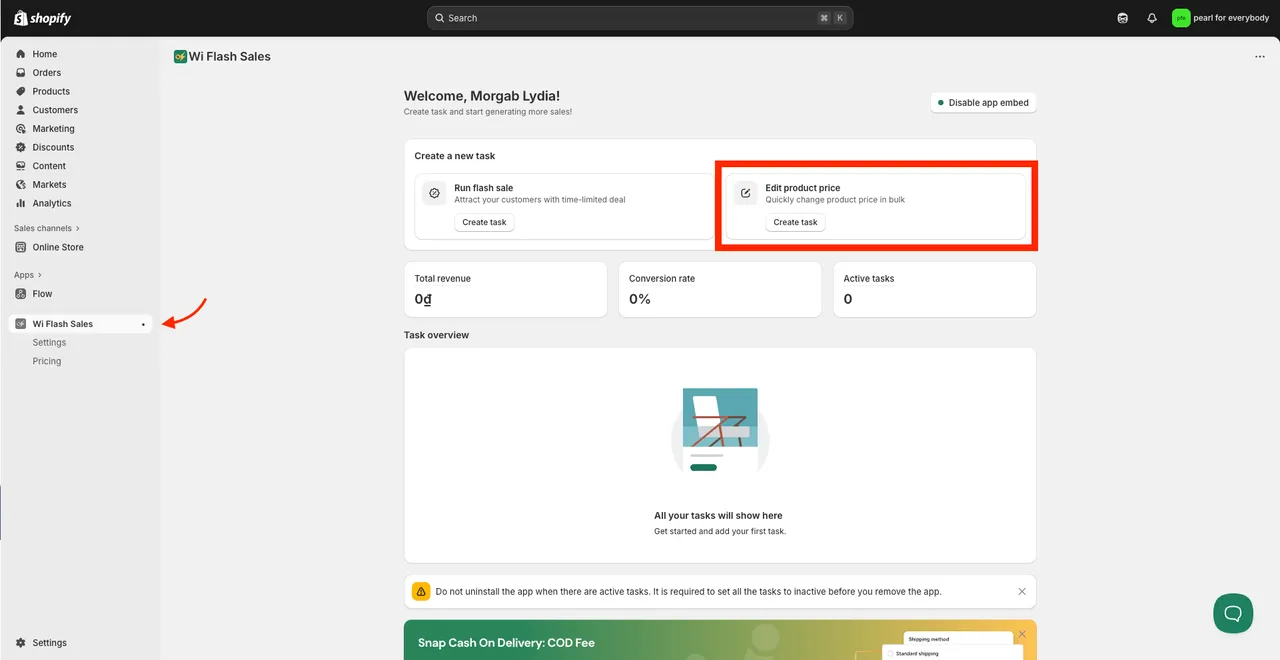
Open the app from your Shopify admin. On the dashboard, find the Edit product price card and click Create task.
-
In Task info, enter a Name and set the Status. Active means the task is on and Inactive means it is off. The name is only for your own task list, for example
Supplier increase - 6%.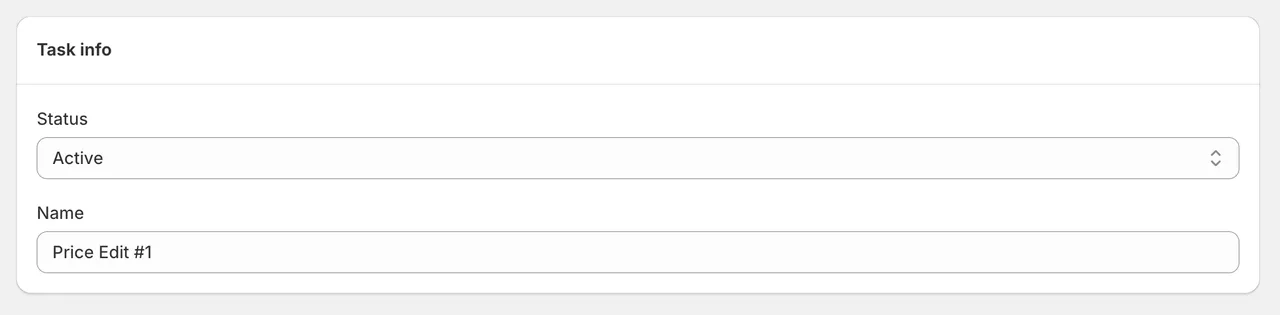
-
In the configuration settings, choose the Target items: all products, specific products, specific collections, tags or product types. See Selecting products.

-
Set up the change rule:
- Choose Increase price, Decrease price or New value.
- Choose the field to change: Price, Compare-at-price or Both.
- Choose how to change it: by percentage or by amount.
- Type the value.
- Optional: tick Override cents to give every product’s price the same charm price or price code ending, such as
.99or.97.
-
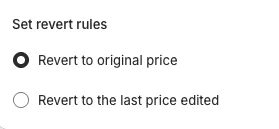
Under Set revert rules, choose what prices return to when the task ends.
-
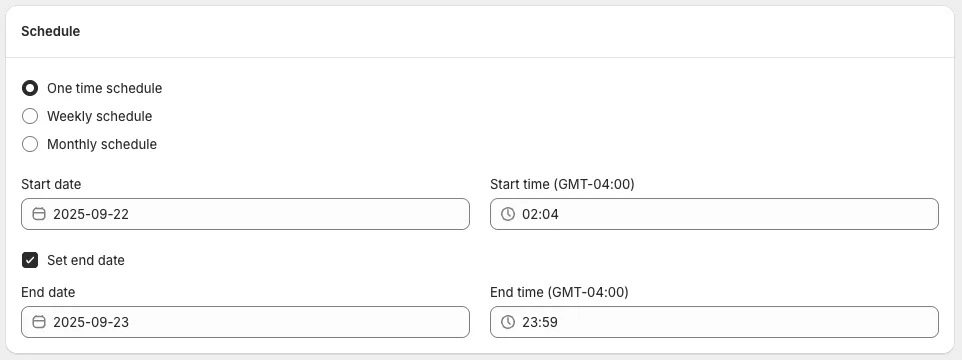
Set the schedule: the start date and time and, with Set end date ticked, the end date and time.
-
Save the task. A task saved as Active with a future start date is scheduled and starts at that time.
Worked example: a 30% increase ending in .99
Section titled “Worked example: a 30% increase ending in .99”The rule: Increase price by 30% for all selected products, with Override cents set to .99.
Before the task, the product page shows $300.00:

After the task runs, the same product shows $390.99:

How price and compare-at price change
Section titled “How price and compare-at price change”A second example increases the price by an amount: the rule is Increase price by $100.
| Product | Before | After |
|---|---|---|
| Product A | Price $320, no compare-at price | Price $420 |
| Product B | Price $320, compare-at price $500 | Price $420, compare-at price $500 |
A Price Edit task that changes Price leaves an existing compare-at price as it is, as Product B shows. Merchants selling to the EU or EEA can use this to show a compare-at price they entered themselves: see EU 30-day lowest price rule. A compare-at price beside a raised price can look like a sale, so it should always be a price you really charged.
Our advice: before running a Price Edit task on a large part of your catalogue, run it on one or two products, check both fields in Shopify admin, then revert it.
Schedule and revert
Section titled “Schedule and revert”A Price Edit task runs by itself on its schedule. The times are based on your store’s time zone.
- One time schedule: a start date and time, and an end date and time. The end date is optional. A task with no end date stays active until you set its Status to Inactive, which reverts the prices.
- Weekly schedule (paid plans): select the days of the week and set a start and end time for each. The schedule repeats every week, and its end date is optional.
- Monthly schedule (paid plans): a start date and an end date, with times, which repeat each calendar month.
Steps and examples for each: Scheduling and recurring sales.
When the task ends, prices revert according to the revert rule you chose:
- Revert to original price: restores the original price. If the price was edited outside the app while the task was running, that edit is discarded.
- Revert to the last price edited: keeps a price that was edited outside the app while the task was running. The edited price is left unchanged when the task ends.

What customers see
Section titled “What customers see”The price on the product page changes at the start time and goes back after the end time, as the before and after screenshots show. Both take processing time. A compare-at price already on the product stays as it is, and in most themes it shows as a strikethrough price when it is higher than the price.
Common uses
Section titled “Common uses”- Regular price increase: raise prices by a percentage or an amount on the date you choose, for example an annual increase or a seasonal one.
- Supplier cost increase: increase the price by a percentage on the affected products. The new prices last while the task stays Active, and setting it to Inactive reverts them.
- New price point: set a new value across a product line.
- Tidying compare-at prices: edit the compare-at price only, so the strikethrough price you show matches a price you really charged.
- Temporary change: schedule an increase or decrease with an end date so it reverts by itself.
Targeting by collection, tag or product type is on paid plans. The Free plan can target all products or specific products.
Good to know
Section titled “Good to know”- Preview. A preview is available from the task once it has been created.
- No discount codes. A Price Edit task changes the product’s own price fields. It does not create a discount code or automatic discount.
- Processing time. For every 3,000 product variants, it takes about 5 minutes to run the price change, and the revert at the end time takes time to apply too.
- Several tasks at once. Our advice: do not run several tasks on the same products at the same time, because the price can be changed twice, by an amount you cannot predict. Give each task its own start and end time. See Staggering tasks.