
How to bulk edit prices and compare-at prices on Shopify
To bulk edit prices on Shopify, select the products on the Products page and click Bulk edit, then type the new prices into the grid. Each price is entered by hand and changes as soon as you save. To change many prices by one rule, such as 20% off, on a schedule and with the old prices put back afterwards, use a Price Edit task or Flash Sale task in PriceDip.
How do I bulk edit prices in Shopify admin?
Section titled “How do I bulk edit prices in Shopify admin?”Shopify has two built-in ways to do this (correct at the time of writing). Neither needs an app.
The bulk editor, for typing prices into a grid:
- Go to Products and tick the products you want to change.
- Click Bulk edit.
- To show a strikethrough price, click Columns and add Compare-at price.
- Type the new price, and the compare-at price if you use one, for each variant.
- Click Save.
A CSV file, for a large catalogue:
- On the Products page, click Export and export your products to a CSV file. Keep an untouched copy.
- Edit the price and compare-at price columns in a spreadsheet. Do not sort the file: Shopify warns that sorting can separate variants from their products.
- Click Import, choose the file and tick the option to overwrite products with matching handles. Without it, existing products are skipped.
Both change prices immediately. Neither has a schedule or a way to put the old prices back, and the bulk editor has no percentage rule. Use them when each product needs its own price, or when your pricing is more complicated than one rule applied to a selection of products.
How does PriceDip bulk edit prices?
Section titled “How does PriceDip bulk edit prices?”PriceDip is a Shopify app that changes prices and compare-at prices by rule, on a schedule, and reverts them. No discount codes are involved. You describe the change once, as a task, and the app applies it to every product you targeted.
| What you set | What it gives you |
|---|---|
| Target items | All products, specific products, specific collections, tags or product types. The Free plan can target all products or specific products; collections, tags and product types need a paid plan |
| One rule for every product | A percentage, a fixed amount or a new value, on the price, the compare-at price or, in a Price Edit task, both |
| Override cents | The same charm price or price code ending on every price, such as .99 or .97 |
| A schedule | A start date and time and an optional end date and time, in your store’s time zone |
| A revert rule | Prices revert when the task ends, with no second edit to remember |
One rule and one schedule cover the whole selection, and the change undoes itself when the task ends. That matters for margin as much as for effort: a sale price left in place after the sale keeps costing you on every order.
There are two task types. Choose by what the shopper should see.
- A visible sale: use a Flash Sale task. In most themes the product shows the original price with a strikethrough next to the sale price.
- A quiet change: use a Price Edit task. It can increase prices, decrease them or set a new value. No strikethrough price shows, unless the product already had a compare-at price higher than its new price.
The full comparison is in Flash Sale task vs Price Edit task.
How do I put my whole store on sale?
Section titled “How do I put my whole store on sale?”-
Install PriceDip on the Shopify App Store and open the app.
-
On the dashboard, find the Run flash sale card and click Create task.
-
Enter a Name and set the Status to Active. An Inactive task does not run on its schedule.
-
Set Target items to All products.
-
Under Set price change rules, choose the field and enter the discount, as a percentage or a fixed amount. Optionally tick Override cents.

-
Choose a revert rule, set the start and end date and time, and save.
All products works on the Free plan, within its limit of 50 product variants in total across your active tasks. Paid plans have no variant limit. See Plans and limits.
How do I raise or lower prices in bulk without a sale?
Section titled “How do I raise or lower prices in bulk without a sale?”-
On the app dashboard, find the Edit product price card and click Create task.
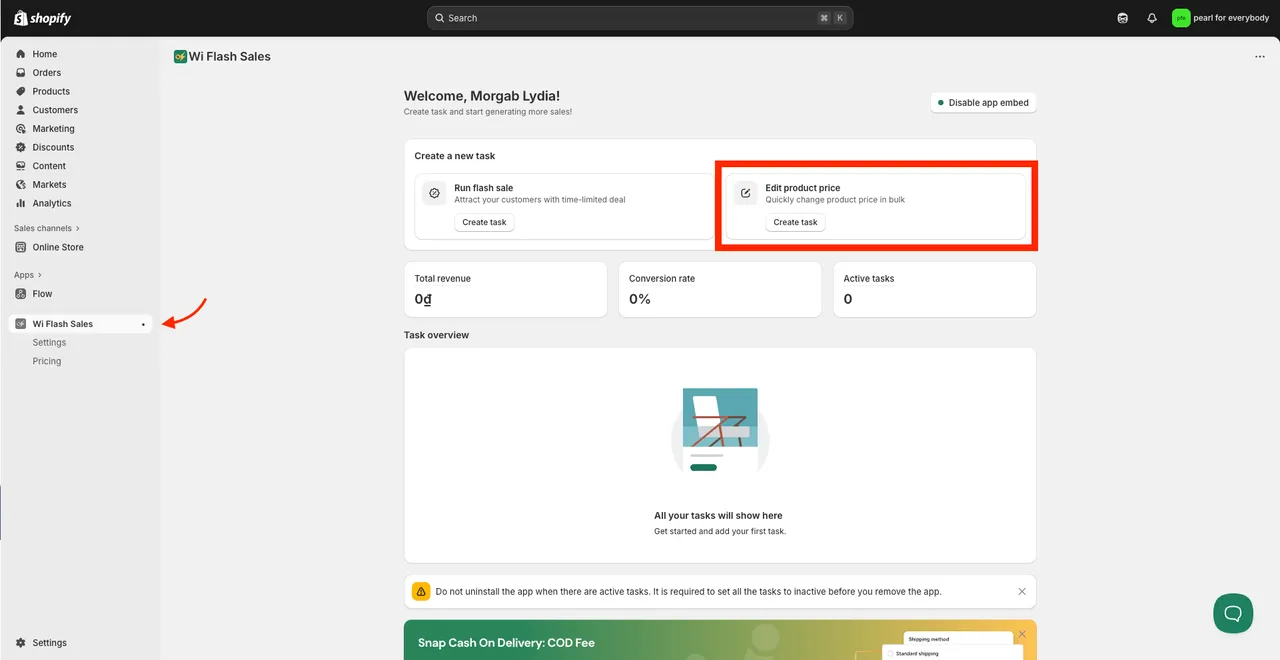
-
Enter a Name and set the Status to Active.
-
Choose the Target items.
-
Choose Increase price, Decrease price or New value.
-
Choose the field to change: Price, Compare-at-price or Both.
-
Choose percentage or amount, and type the value.
-
Choose a revert rule, set the schedule and save.
If you do not know the end date yet, leave Set end date unticked. The new prices stay in place until you set the task’s Status to Inactive, which reverts them. Uninstalling the app does not revert prices, and deleting an Active task makes its change permanent.
When are Shopify’s own tools the better fit?
Section titled “When are Shopify’s own tools the better fit?”A task applies one rule to many products: an amount, a percentage or a new value for a selection. Two jobs call for Shopify’s own tools instead.
- Each product needs its own price. Use the bulk editor or a CSV import, as above.
- The pricing is more complicated than one rule. If an amount, a percentage or a new value for a selection of products cannot describe the change, edit the prices directly.
Shopify’s discounts are a third option, under Discounts > Create discount. A discount code or automatic discount is applied in the cart or at checkout; the listed product price does not change. That suits an offer for a specific audience. Stores on Shopify Plus also have Launchpad, Shopify’s own tool for scheduled sale events.
How do the options compare?
Section titled “How do the options compare?”| Method | What it changes | Can it be scheduled? | Does it revert by itself? | Best for |
|---|---|---|---|---|
| Flash Sale task | The price and the compare-at price, with the discount set as a percentage or fixed amount | Yes | Yes, when the task ends | Visible sales with a deadline |
| Price Edit task | Price, compare-at price or both: increase, decrease or new value, by percentage or amount | Yes | Yes, when the task ends | Regular price changes by amount, percentage or new value |
| Bulk editor in Shopify admin | Price and compare-at price of many variants, typed into a grid. No percentage rule | No | No | Individual prices per product, and pricing more complicated than one rule |
| CSV export and import | Price and compare-at price columns, edited in a spreadsheet | No | No | Individual prices across a large catalogue |
| Shopify automatic discount or discount code | Nothing on the product. Applied in the cart or at checkout | Yes, with start and end dates | The discount stops applying | Offers for a specific audience |
Our advice: when a change has an end date, the risk is the second edit, the one that puts prices back. A task with an end date makes that edit at the time you set.
How long does a bulk price change take?
Section titled “How long does a bulk price change take?”For every 3,000 product variants, it takes about 5 minutes to run the price change. Two things follow from that:
- Schedule ahead. If a sale must be live at 9:00 am, start a large task early enough to finish before then.
- Do not overlap start or end times. A task can get stuck if two tasks start or end at the same time. See Staggering tasks.
Limits and timings count variants, not products. A product with 6 sizes is 6 variants.
What happens to prices when the task ends?
Section titled “What happens to prices when the task ends?”A Flash Sale task reverts both the price and the compare-at price. A Price Edit task reverts only the field it changed. Both follow the revert rule you chose:
| Revert rule | What it does |
|---|---|
| Revert to original price | Restores the original price. If the price was edited outside the app while the task was running, that edit is discarded. |
| Revert to the last price edited | Keeps a price that was edited outside the app while the task was running. The edited price is left unchanged when the task ends. |
Keep each product in one active task at a time. A second Flash Sale task stacks on the first, a Price Edit decrease has no effect while a Flash Sale task is active on the product, and reverting the second Flash Sale task returns the product to its original price. Details: How price reverts work.
Frequently asked questions
Section titled “Frequently asked questions”How do I put my whole Shopify store on sale?
Section titled “How do I put my whole Shopify store on sale?”Create a Flash Sale task in PriceDip, set Target items to All products, enter the discount as a percentage or a fixed amount, and set a start and end date and time. The Free plan covers this within 50 product variants in total across your active tasks. Paid plans have no variant limit.
How do I change prices by a percentage on Shopify?
Section titled “How do I change prices by a percentage on Shopify?”In PriceDip, create a Price Edit task or a Flash Sale task, choose the products and enter the percentage once. The task applies it to every product you targeted. Shopify’s bulk editor has no percentage rule, so there you type each new price.
Can Shopify schedule a price change by itself?
Section titled “Can Shopify schedule a price change by itself?”Not with the bulk editor or a CSV import: both change prices immediately and do not revert them. Shopify discounts can have start and end dates, but they are applied in the cart or at checkout and the listed product price does not change. Stores on Shopify Plus also have Launchpad for scheduled sale events.
When should I use Shopify’s bulk editor instead of a task?
Section titled “When should I use Shopify’s bulk editor instead of a task?”Use the bulk editor or a CSV import when each product needs its own price, or when your pricing is more complicated than one rule. A task applies one rule to a selection of products and reverts the prices when it ends or is set to Inactive.
How long does a bulk price change take?
Section titled “How long does a bulk price change take?”In PriceDip, for every 3,000 product variants it takes about 5 minutes to run the price change. Allow about the same time for the revert.