How to run a flash sale on Shopify
To run a flash sale on Shopify, lower the price of a set of products for a short, fixed period and put the prices back when it ends. You can do that by hand in Shopify admin. A Flash Sale task in PriceDip does it on a schedule: it changes the prices and compare-at prices and reverts them when the sale ends. In most themes the original price shows as a strikethrough price. No discount codes are involved.
What is a flash sale, and when does it work?
Section titled “What is a flash sale, and when does it work?”A flash sale is a price reduction with a short, firm deadline, counted in hours or days, not weeks. The deadline does the selling. Shoppers who were going to think about it have a reason to decide now.
Flash sales work best when:
- The products are already wanted. A discount removes a price objection. It does not create interest in a product nobody was looking at.
- The end time is real and you keep to it.
- Shoppers can see the offer without adding anything to the cart.
- You know your margin at the sale price before you launch.
Our advice: use flash sales for moments, such as a launch, a seasonal peak or end-of-line stock. A store that is always on sale teaches shoppers to wait.
How long should a flash sale last?
Section titled “How long should a flash sale last?”Our advice: run a flash sale for about a day, meaning roughly 24 hours. That is short enough for the deadline to feel close. It also gives shoppers in every time zone some waking hours to buy, and gives you time for a launch email and a last-chance reminder.
| Length | When it fits | The trade-off |
|---|---|---|
| A few hours | Most of your customers will see the announcement at once, for example an engaged email or SMS list in one region. Also a short window inside a longer event, as in Planning your Black Friday and Cyber Monday sale | Shoppers who are asleep or at work miss it, and there is no time for a reminder |
| About a day | You want every shopper to get a fair chance to see the sale, and time for a reminder | Less pressure than a sale of a few hours |
| Two or three days, such as a weekend | The product takes some thought to buy, such as a higher-priced item | The deadline is further away, and every extra day sells more units at the lower margin, including to shoppers who would have paid full price |
We would not call anything longer than three days a flash sale. The deadline is too far away to make a shopper decide today.
These lengths are our judgement. We have not tested them. Shopify’s flash sale guide says most flash sales last between 2 and 36 hours, and that the shorter the sale, the better. Our upper limit of three days is longer than Shopify’s range.
Our advice, whatever length you choose:
- Tell your list about the sale before it starts. The shorter the sale, the more it depends on shoppers knowing in advance.
- State the end date, time and time zone wherever you announce the sale. The task’s schedule uses your store’s time zone.
- Do not extend the sale. A deadline that moves once is not believed next time.
- On a large catalogue, allow for processing time. A price change takes about 5 minutes for every 3,000 product variants, which matters most for a sale of a few hours.
To set the start and end, see How do I set up a flash sale with PriceDip?
How do I run a flash sale with Shopify alone?
Section titled “How do I run a flash sale with Shopify alone?”Shopify has no flash sale feature on most plans, but its own tools cover a small one. Stores on Shopify Plus have Launchpad for scheduled sale events.
- Before the sale, note the current price of each product, or export your products to a CSV file from the Products page.
- At the start, go to Products, tick the products and click Bulk edit. Click Columns to add Compare-at price if it is not shown. Put the current price in Compare-at price and the sale price in Price for each variant, and save.
- At the end, open the bulk editor again, put the old prices back and clear the compare-at prices, unless a product had a compare-at price before the sale.
This works for a handful of products when someone is at the keyboard at both ends. It gets risky with many variants or a midnight deadline, because a missed product keeps selling at its sale price. The steps are in How to show a sale price on Shopify.
Sale price or Shopify discount code: which should I use?
Section titled “Sale price or Shopify discount code: which should I use?”Our advice: run a flash sale meant for every visitor as a sale price on the product, and keep Shopify’s discount codes for an offer to a specific audience.
| Sale price on the product | Shopify discount code or automatic discount | |
|---|---|---|
| Where shoppers see the savings | On the product, in most themes as a strikethrough original price | In the cart or at checkout |
| Who gets the savings | Every shopper, including those who would have paid full price | Shoppers who have the code or meet the conditions |
Three things to settle before the sale:
- Margin. With a 50% gross margin, a 20% discount needs 67% more units to earn the same gross profit. See Do discounts increase profit? A worked Shopify example.
- The strikethrough price. It must be one you really charged, and many countries set rules for it. If you sell to shoppers in the EU or EEA, read EU 30-day lowest price rule first.
- Active discounts. A discount code or automatic discount that applies to a product is applied on top of its sale price. Check which are active and place a test order. To keep sale items out of them, see Exclude sale items from Shopify discount codes.
The full comparison is in Discount codes vs sale prices on Shopify.
Can Google show my flash sale price?
Section titled “Can Google show my flash sale price?”It can, when the sale is on the product price, your store syncs its products to Google Merchant Center, and the sale meets Google’s rules. The price is part of the product data. With Shopify’s own product sync to Google, the price is sent as the sale price and the compare-at price as the original price. Google says prices update within 24 hours. If you sync through another feed tool, check how it maps the two fields.
Google decides whether to show a sale price and does not guarantee it. Its sale price rules ask for:
- A discount of more than 5% and less than 90%.
- The original price and the sale price both shown on the product page.
- In many countries, an original price that was charged for 30 of the past 200 days.
The price history rule differs by country and between free listings and ads, so check Google’s page for the countries you sell in.
A Shopify discount code or automatic discount does not change the product data. It reaches Google only if you publish it separately as a promotion, which Google supports for some discount types and countries.
Our advice:
- Do not count on Google for a sale of a day or less. It can be over, or nearly over, before Google updates. That includes a flash sale of about a day.
- For a longer sale, expect Google to lag by up to a day at the start and again after the prices revert.
- Where Google asks for price history, products that are on sale often may not qualify. That is one more reason to keep sales occasional.
How do I set up a flash sale with PriceDip?
Section titled “How do I set up a flash sale with PriceDip?”-
Install PriceDip on the Shopify App Store and open the app.
-
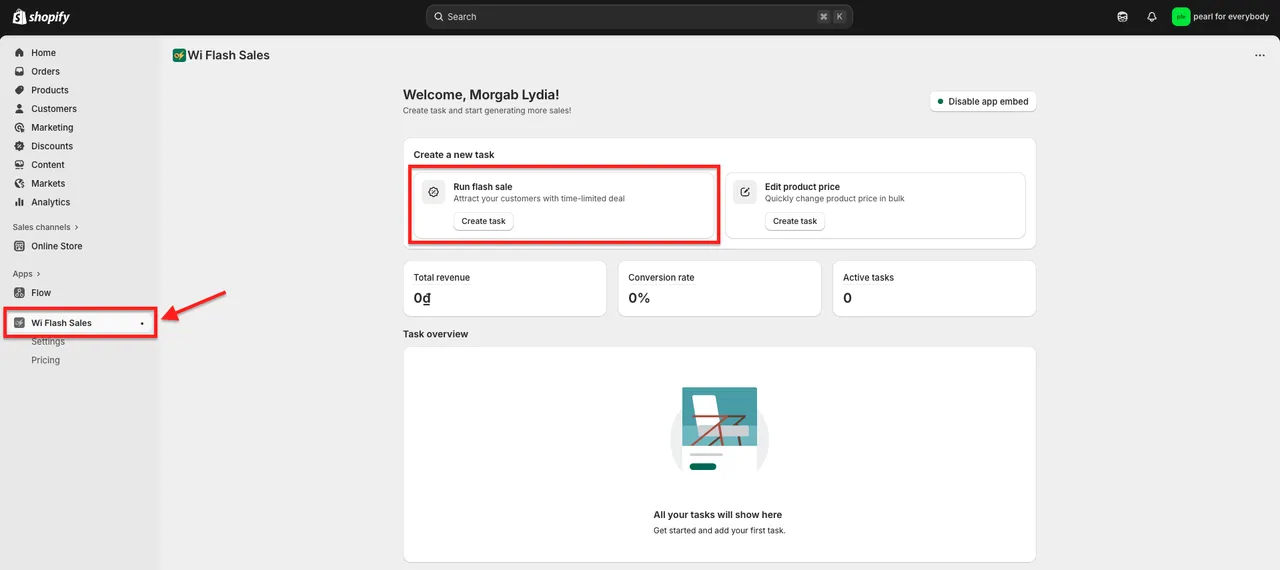
On the dashboard, find the Run flash sale card and click Create task.
-
Enter a Name and set the Status to Active. An Active task with a start date in the future is scheduled and starts at that time. With a start date of now, it runs as soon as you save. An Inactive task does not run on its schedule.
-
Choose the Target items. The Free plan can target all products or specific products. Collections, tags and product types need a paid plan.
-
Under Set price change rules, choose Price or Compare-at price and enter the discount, as a percentage or a fixed amount.
-
Under Set revert rules, choose what happens to prices when the task ends.
-
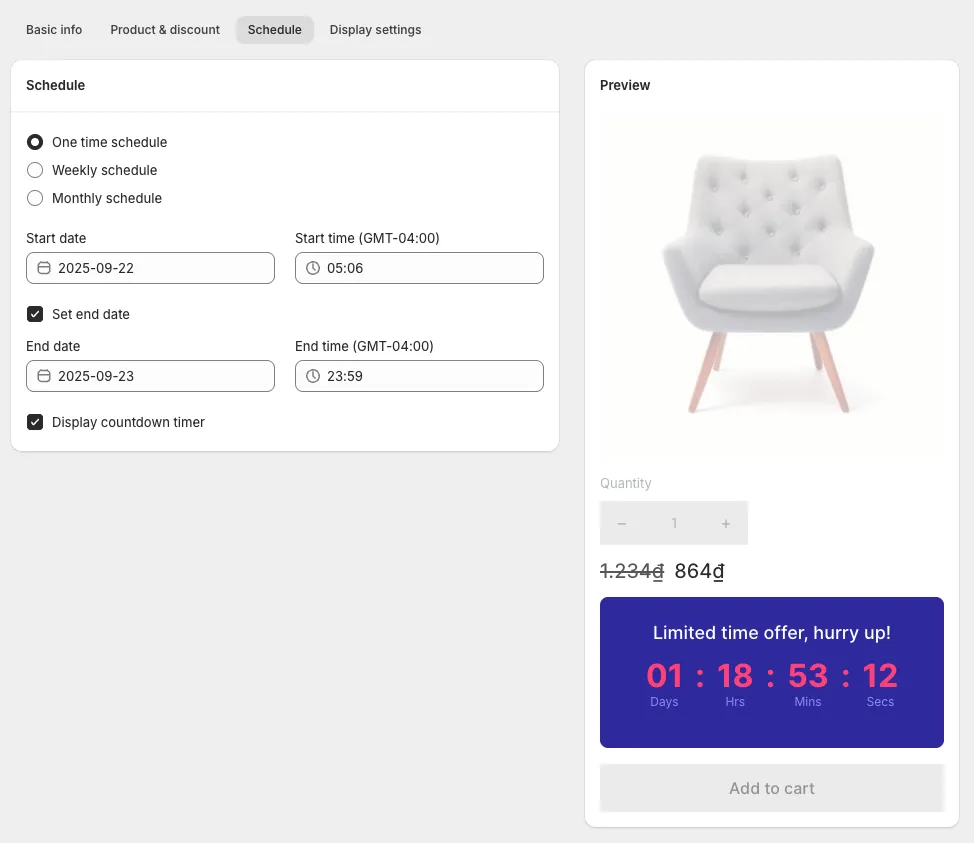
On the Schedule tab, set the start date and time, tick Set end date and set the end date and time. The end date is optional. A task without one keeps the sale prices until you set its Status to Inactive, which is why a flash sale needs one.
-
Save the task. The Preview shows how the widgets will look on a sample product. The prices in it are sample figures, not yours.
Our advice: before a large sale, run the task on one or two products first. Check the price on your storefront, set the test task to Inactive, confirm the prices have reverted, and only then run the full task.
The task starts and ends by itself. The Quick Start walks through the same steps with every screenshot, and Flash Sale tasks explains each setting.
How do shoppers see that a product is on sale?
Section titled “How do shoppers see that a product is on sale?”A sale nobody notices does not convert. These are the signals available, from the product page outwards:
| Signal | Where it shows | How to switch it on | Plan |
|---|---|---|---|
| Strikethrough price | On product and collection pages in Shopify’s Horizon theme. Other themes may differ | Comes from the price and compare-at price set by the task | All plans |
| Flash sale badge | On the product | Display flash sale badge on the task’s Display settings tab | All plans |
| Stock progress bar | Product page | Display stock progress bar on the Display settings tab | All plans |
| Countdown timer | Product page | Display countdown timer on the Schedule tab | Paid plans |
| Promotion banner | Top of every page except checkout | App Settings > Promotion banner > Customize | See Plans and limits |
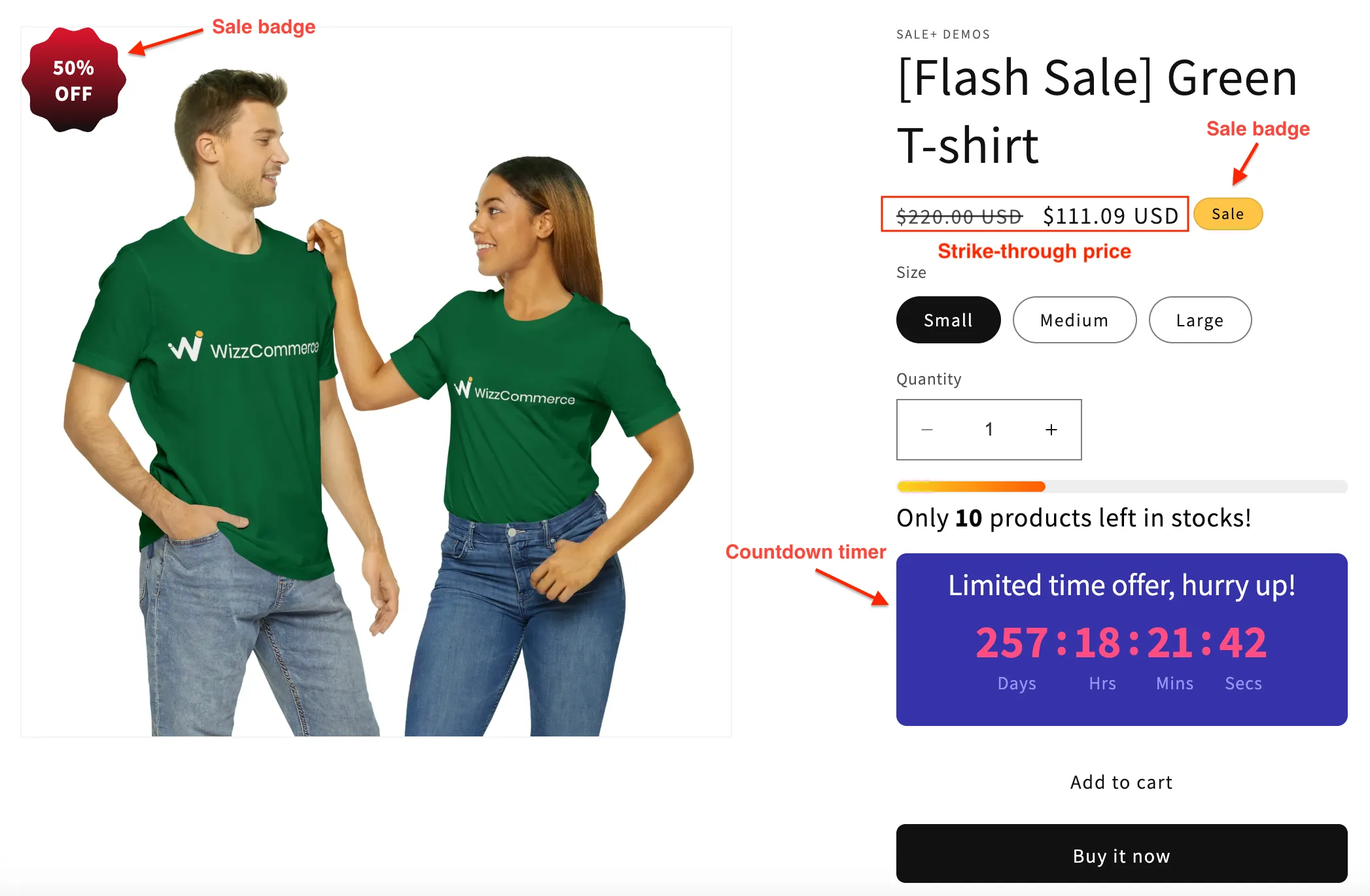
The countdown timer, stock progress bar and promotion banner need the app’s embed switched on in your theme. If any widget does not show, check the app embed first.
Our advice: use the stock progress bar only on products that are really limited. Urgency that turns out to be untrue costs you the next sale.
Where should the sale products live in my store?
Section titled “Where should the sale products live in my store?”Our advice: put them in one collection, so your emails, ads and promotion banner have one place to point to.
- In Shopify admin, go to Products > Collections and create a collection, for example “Weekend deals”.
- Add the sale products by hand, or use an automated collection based on a tag such as
weekend-deal. - Add the collection to your store’s navigation menu and link your promotion banner to it.
Our advice: fill the collection by tag, and target the task at the specific products, or at the tag itself on a paid plan.
Flash sale checklist
Section titled “Flash sale checklist”Before launch
Section titled “Before launch”- You know the sale price to expect on one product. Check it on the storefront after the start time.
- You know the gross profit per unit at the sale price, and how many extra units the sale needs to pay for itself.
- The end date and time are set, in your store’s time zone.
- No other task starts or ends at the same time, and no product is in two active tasks.
- The promotion banner, email and countdown timer all state the same end time.
- Active discount codes and automatic discounts are checked, and a test order shows the final price a shopper pays.
After the sale
Section titled “After the sale”- Allow processing time: about 5 minutes for every 3,000 product variants.
- Open a few products in Shopify admin and on the storefront and confirm the prices have reverted.
- Take down the banner and empty the sale collection.
- Compare profit, not only revenue, with a normal period.
Frequently asked questions
Section titled “Frequently asked questions”How long should a Shopify flash sale last?
Section titled “How long should a Shopify flash sale last?”Our advice: run a Shopify flash sale for about a day, meaning roughly 24 hours. Shorten it to a few hours if most of your customers will see the announcement at once, for example through an engaged email or SMS list in one region, or for a short window inside a longer event. Run it for two or three days when the product takes some thought to buy.
This is our judgement, not a tested result. The deadline is what creates urgency, so state the end date and time and do not extend it.
Do I need a paid app to run a flash sale on Shopify?
Section titled “Do I need a paid app to run a flash sale on Shopify?”A flash sale on Shopify does not need a paid app. You can set sale prices by hand in Shopify’s bulk editor, or use a Shopify discount, at no extra cost. The Free plan of PriceDip also runs Flash Sale tasks, on all products or specific products, up to 50 product variants in total across your active tasks.
Will the prices go back to normal when the flash sale ends?
Section titled “Will the prices go back to normal when the flash sale ends?”Prices go back to normal only if something puts them back. Prices edited by hand stay until you change them. A Shopify discount stops applying at its end date. A Flash Sale task reverts the price and the compare-at price at its end date and time, or when you set its Status to Inactive, according to the revert rule you chose.
Why do my sale prices not show a strikethrough on the product page?
Section titled “Why do my sale prices not show a strikethrough on the product page?”Most themes show a strikethrough only when the product has a compare-at price higher than its price. A discount code or automatic discount does not change those fields, so the reduction appears in the cart or at checkout. To show a strikethrough, set a compare-at price by hand or run a Flash Sale task, which sets both fields.
Can I run two flash sales at the same time?
Section titled “Can I run two flash sales at the same time?”Two flash sales can run at the same time. Our advice: keep each product in one active task at a time, and give each task its own start and end time. A second Flash Sale task on the same product stacks on the first. Reverting it returns the product to its original price, which undoes the first as well. A task can get stuck if two tasks start or end together.
Related
Section titled “Related”- Planning your Black Friday and Cyber Monday sale
- Recurring daily or weekly deals
- Sale badge and countdown timer
- Shopify compare-at price: how the strikethrough price works
- Shopify discount not converting? Find where shoppers drop off
- How to write a Shopify sale banner that gets clicked
- How to bulk edit prices and compare-at prices on Shopify
- PriceDip: schedule price changes and flash sales