
Shopify compare-at price: how the strikethrough price works
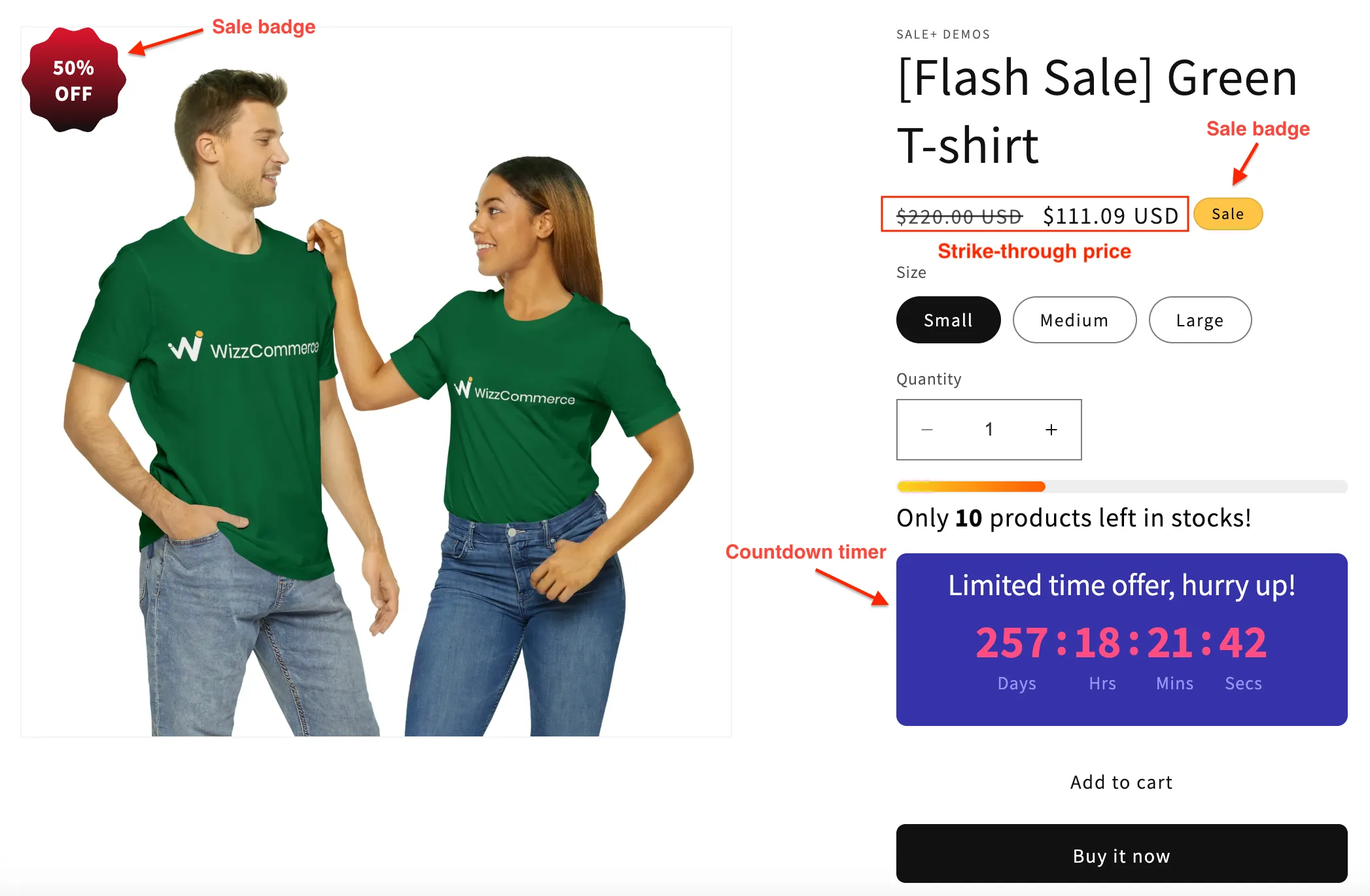
The Shopify compare-at price is the “was” price of a product. When it is higher than the price, most themes show it crossed out next to the price, which is how Shopify shows a product as on sale. This is called a strikethrough price. You can set it by hand on one product, or let a Flash Sale task in PriceDip set and revert it across many products. No discount code is involved.
New to this? Start with How to show a sale price on Shopify.
What are the price and compare-at price fields?
Section titled “What are the price and compare-at price fields?”Every product variant in Shopify has two price fields:
| Field | What it is | What the shopper sees |
|---|---|---|
| Price | What the shopper pays | The selling price |
| Compare-at price | An optional reference price | In most themes, a strikethrough price next to the selling price, often with a sale badge |
A strikethrough only appears when the compare-at price is higher than the price. How it looks, and whether a sale badge is added, depends on your theme.
Why does a strikethrough price help a sale?
Section titled “Why does a strikethrough price help a sale?”Shoppers judge a price against a reference point. This is called price anchoring. $160 on its own is just a price. $160 next to a strikethrough $320 shows the savings before the shopper does any arithmetic.
That only works while the reference price is believable. A compare-at price nobody ever paid is a claim your shoppers can check, and it costs you trust when they do.
Does a discount code show a strikethrough price?
Section titled “Does a discount code show a strikethrough price?”No. A Shopify discount code or automatic discount is applied in the cart or at checkout, and it does not change the price or the compare-at price. The product page keeps showing the usual price.
That difference matters in two places:
- On the product page. A compare-at price shows the savings to every visitor before they add to cart. A discount shows them later, in the cart or at checkout.
- On Google. The price and the compare-at price are part of the product data. With Shopify’s own product sync to Google Merchant Center, they are sent as the sale price and the original price. Google decides whether to show the sale. A discount does not change that data. See Can Google show my flash sale price?
A discount code or automatic discount also applies on top of a Flash Sale task’s sale price, so a shopper can get both. See Exclude sale items from Shopify discount codes.
Our advice: use a compare-at price for a sale meant for every visitor, and a discount code for an offer aimed at a specific audience. The trade-off of a sale on the price is that every shopper gets it, including those who would have paid full price. The comparison is set out in Discount codes vs sale prices on Shopify.
How do I add a compare-at price by hand?
Section titled “How do I add a compare-at price by hand?”In Shopify admin, at the time of writing:
- Go to Products and open the product.
- In the pricing section, enter the original price in Compare-at price.
- Enter the lower sale price in Price.
- For a product with variants, repeat this for each variant.
- Save.
For a few products this is all you need. For many, Shopify’s bulk editor shows both fields in a grid: see How to bulk edit prices and compare-at prices on Shopify. Neither method puts the old prices back when the sale ends:
- A missed product keeps selling at its sale price, or keeps a compare-at price that is no longer true.
- Every variant has its own two fields, so ending a storewide sale means editing each one again.
How does a Flash Sale task set both fields?
Section titled “How does a Flash Sale task set both fields?”A Flash Sale task in PriceDip changes the two fields for every product it targets, then reverts them when the task ends. Under Set price change rules you choose which field the discount is calculated from: Price or Compare-at price. The discount can be a percentage or a fixed amount.

The result depends on the field you choose and on whether the product already has a compare-at price. Each example below is a 50% discount.
| You choose | Product before the task | Product during the task |
|---|---|---|
| Price | Price $320, no compare-at price | Price $160, compare-at price $320 |
| Price | Price $320, compare-at price $500 | Price $160, compare-at price $320 |
| Compare-at price | Price $320, compare-at price $500 | Price $250, compare-at price $500 |
| Compare-at price | Price $320, no compare-at price | Price $320, compare-at price $640 |
What the table shows:
- Price discounts from the price the product sells at today. That price becomes the compare-at price for the length of the task, so the strikethrough price is the price from just before the sale.
- Compare-at price discounts from the existing compare-at price.
- In the last row the shopper’s price does not go down. The product had no compare-at price, so a new one is added and the selling price stays at $320. The new $640 is also a price the product never sold at, so it is not an honest reference price.
Our advice: choose Price. It lowers the price on every product and uses your current selling price as the reference. Choose Compare-at price only when every targeted product already has a compare-at price it really sold at, as in the third row.
What happens to both fields when the task ends?
Section titled “What happens to both fields when the task ends?”When the task ends, or when you set it to Inactive, both the price and the compare-at price are reverted. In the second row of the table, the old compare-at price of $500 returns after the task.
The revert rule you chose decides what happens to a price that was edited outside the app during the task. Revert to original price restores the original price. Revert to the last price edited keeps the edited price.
How does a sale work with Shopify Markets?
Section titled “How does a sale work with Shopify Markets?”Where a market’s prices are a percentage of the base price, the sale follows automatically. Where a market has fixed prices, the sale does not reach that market. A Flash Sale task changes only the base price and the base compare-at price. What to check in each kind of market is in Shopify Markets and sale prices.
How do I keep reference prices honest?
Section titled “How do I keep reference prices honest?”Our advice, not legal advice:
- Use a compare-at price the product really sold at, recently and for a meaningful period.
- Do not raise a price shortly before a sale to make the discount look bigger.
- End sales when you said they would end. A task with an end date does this for you.
Rules on reference pricing differ by country. The EU and EEA, for example, have a 30-day lowest price rule, and a Flash Sale task on Price shows the price from just before the sale, which is not always the lowest price of the last 30 days: see EU 30-day lowest price rule. Check the rules for the markets you sell in, and take extra care with sales that repeat often.
Common mistakes
Section titled “Common mistakes”| Mistake | What goes wrong | Fix |
|---|---|---|
| A stale compare-at price left after a sale | The product looks permanently on sale, and the claim stops being true | Clear it, or run sales as tasks so both fields revert |
| Compare-at price lower than the price | No strikethrough shows | Make the compare-at price the higher of the two |
| Discount on the wrong field | The selling price does not drop, as in the last row above | Run the task on one product first and check the price on your storefront. Set that test task to Inactive before you start the full task |
| Editing prices by hand during a task | The revert rule decides whether the edit survives | Choose the revert rule on purpose |
Frequently asked questions
Section titled “Frequently asked questions”What is the compare-at price on Shopify?
Section titled “What is the compare-at price on Shopify?”The compare-at price is an optional second price on a product variant. When it is higher than the price, most Shopify themes show it as a strikethrough price next to the price, so shoppers see the product as on sale.
Why is my strikethrough price not showing on Shopify?
Section titled “Why is my strikethrough price not showing on Shopify?”A strikethrough price shows only when the variant has a compare-at price that is higher than its price, so check both fields first. If both are set correctly, check Shopify Markets pricing and then the theme, which decides how the sale price is displayed.
See Shopify compare-at price not showing: how to fix it.
Does a Flash Sale task remove the compare-at price when the sale ends?
Section titled “Does a Flash Sale task remove the compare-at price when the sale ends?”When the task ends, both the price and the compare-at price are reverted, according to the revert rule you chose. A compare-at price that the product had before the task returns after the task ends. A product that had no compare-at price before the task has none again afterwards.
Should I discount the price or the compare-at price?
Section titled “Should I discount the price or the compare-at price?”Choose Price in most cases. It lowers what the shopper pays on every product, whether or not the product already has a compare-at price. Choosing Compare-at price on a product with no compare-at price does not lower the selling price.
Related
Section titled “Related”- How to run a flash sale on Shopify
- How to bulk edit prices and compare-at prices on Shopify
- EU 30-day lowest price rule
- Do discounts increase profit? A worked Shopify example
- Shopify compare-at price not showing: how to fix it
- Flash Sale task vs Price Edit task
- PriceDip: schedule price changes and flash sales