How to write a Shopify sale banner that gets clicked
A sale banner gets clicked when one short line tells the shopper what is on sale, how much they save and when it ends, and when that line is still readable on a phone. A banner that says only that a sale exists gives the shopper nothing to act on.
What are the parts of a sale banner?
Section titled “What are the parts of a sale banner?”A sale banner, also called an announcement bar, is a strip across the top of the store that stays in place while the shopper browses. It has five parts you control.
| Part | What good looks like | Common miss |
|---|---|---|
| Offer | Names the product and the savings | “Sale” with no product and no number |
| Deadline | A day and a time | “Limited time” |
| Wording | One sentence, one action | Two offers and a slogan |
| Phone layout | One or two lines, readable without zooming | A message that wraps to four lines |
| Placement and rotation | Changes when the offer changes | The same bar for months |
The offer: what is on sale, and how much?
Section titled “The offer: what is on sale, and how much?”Name the product group and put a number next to it. “25% off linen shirts” tells the shopper whether the sale is for them. “Sale” does not.
Our advice on the number:
- State the savings in the form that is easier to picture. On a $20 product, “25% off” reads better than “$5 off”. On a $200 product, “$50 off” reads better than “25% off”.
- If discounts differ by product, give the range honestly, for example “20% to 40% off”.
- Promise only what the store delivers. The banner announces the offer. The price change or shipping rate behind it has to exist in your store.
The deadline: when does it end?
Section titled “The deadline: when does it end?”A sale with no stated end can always be looked at tomorrow. Give the day and the time, and write the time so it cannot be misread. “Ends Sunday 11:59 pm” is clear. “Ends Sunday at midnight” could mean the start or the end of Sunday.
A countdown in the banner does the same job without words, and it is hard to ignore because it moves.
Our advice: write the deadline to match the moment prices actually change. A banner that says a sale ends tonight, above prices that are still reduced tomorrow, costs you trust.
The wording: one line, one action
Section titled “The wording: one line, one action”Write a line that could only belong to your store, about your products. Put the product and the savings in the first few words, because the end of the line is what gets cut off on a small screen.
Give the banner one job. If it has a button, the button goes to the sale collection and nowhere else.
The phone layout
Section titled “The phone layout”Most of the bar’s width disappears on a phone. Check these on your own phone, on the live store, before the sale starts:
- The message fits on one or two lines.
- The text is readable at arm’s length, with clear contrast against the bar colour.
- The bar does not take over the first screen. The shopper should still see the top of the page content.
Placement and rotation
Section titled “Placement and rotation”A bar that never changes becomes part of the furniture. Shoppers stop reading it.
- Take the banner down when the sale ends. A schedule does this for you.
- Change the message when the offer changes.
- Choose a bar colour that your theme does not already use for buttons and headers, so it stands apart from the rest of the page.
Example rewrites
Section titled “Example rewrites”Each rewritten message is within the 120-character limit of the banner message field in PriceDip.
| Before | After | Characters |
|---|---|---|
| Sale now on | Linen shirts are 25% off until Sunday 11:59 pm. | 47 |
| Storewide discount this week | Every candle is $6 off until Friday 6:00 pm. Stock up for gifting. | 66 |
| Don’t miss our deals! | 48-hour flash sale: 30% off running shoes. Prices return Tuesday 9:00 am. | 73 |
| Free delivery available | Free delivery on orders over $60, this week only. | 49 |
| New season, new prices | Last season’s colours are 40% off while sizes last. Sale ends Monday 11:59 pm. | 78 |
The free delivery example only works if your store has that shipping rate set up.
Should I use my theme’s announcement bar or the PriceDip banner?
Section titled “Should I use my theme’s announcement bar or the PriceDip banner?”Many Shopify themes include an announcement bar of their own. It suits a standing message, such as delivery information.
The promotion banner in PriceDip is a bar at the top of every page of your store, except the checkout page. It adds three things that matter for a sale: a schedule with a start and end date and time, an optional countdown timer, and an optional call-to-action button.

How do I set up the banner in PriceDip?
Section titled “How do I set up the banner in PriceDip?”-
Switch on the app’s embed in your live theme. The banner does not show without it. See Enable the app embed.
-
In the app, open Settings, then click Customize on the Promotion banner card.
-
Set Status to Active. Tick This banner can be closed if shoppers should be able to dismiss it.
-
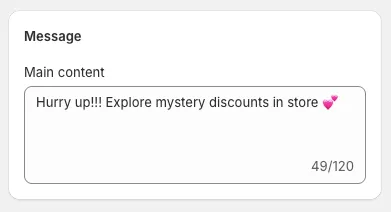
Write the message in Main content. The field holds up to 120 characters.
-
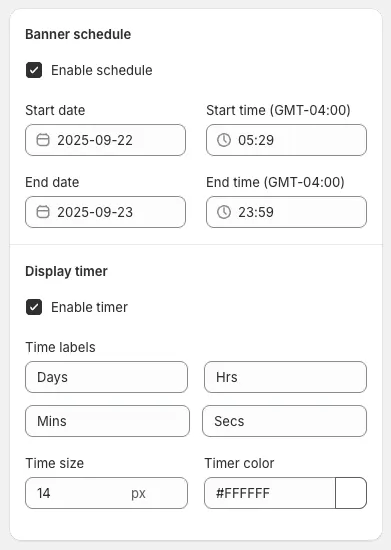
Tick Enable schedule and set the start and end date and time. The banner appears at the start and disappears at the end.
-
Tick Enable timer to show a countdown to the end of the schedule.
-
Tick Enable call to action, enter the button text and paste the link to your sale collection.
-
Check the preview, then save.
Our advice: give the banner the same end date and time as your Flash Sale task, so the banner and the price change agree. The sale itself is a change to the product’s price and compare-at price, not a discount code, so the banner has no code to announce.
The banner is part of PriceDip on the Shopify App Store.
Frequently asked questions
Section titled “Frequently asked questions”What should a sale banner say?
Section titled “What should a sale banner say?”Say what is on sale, how much the shopper saves and when it ends, in one short line. For example: “Linen shirts are 25% off until Sunday 11:59 pm.”
Why is nobody clicking my discount banner?
Section titled “Why is nobody clicking my discount banner?”A discount banner usually goes unclicked because it says a sale exists without saying what is on sale, how much is saved or when it ends. The other common causes are a message that wraps over several lines on a phone, and a bar that has looked the same for so long that shoppers no longer read it.
Is a banner better than a pop-up for a sale?
Section titled “Is a banner better than a pop-up for a sale?”For announcing a sale, our advice is a banner over a pop-up, because it stays visible on every page without interrupting the shopper. A pop-up, shown once, fits a single request that needs a response, such as collecting an email address.
How long can the banner message be in PriceDip?
Section titled “How long can the banner message be in PriceDip?”The Main content field of the promotion banner holds up to 120 characters. Our advice is to use far fewer, so the line stays readable on a phone.
Does the promotion banner show at checkout?
Section titled “Does the promotion banner show at checkout?”The promotion banner does not show at checkout. It appears at the top of every other page of the store.