EU 30-day lowest price rule: what to check before a Shopify sale
If you sell to customers in the EU or EEA and announce a price reduction, you must show the prior price: the lowest price you charged in at least the 30 days before the reduction. A Flash Sale task in PriceDip, with the discount on Price, shows the price from just before the sale as the strikethrough price. That is the prior price only when the product was not cheaper at any point in the last 30 days.
This is our summary for merchants, not legal advice. National rules differ, so check the rules in the countries you sell to. If you already know the rule, go to How do I run a sale that fits the rule?
What is the EU 30-day lowest price rule (Omnibus Directive)?
Section titled “What is the EU 30-day lowest price rule (Omnibus Directive)?”The rule comes from the EU Price Indication Directive, as amended by the Omnibus Directive. It has applied in the EU since 28 May 2022, through each country’s own law.
| Question | What the rule says |
|---|---|
| When does it apply? | When you announce a price reduction on goods to customers in the EU or EEA. That includes businesses based outside the EU that sell to customers there |
| What counts as an announcement? | A strikethrough price, a percentage off, a sale badge or banner, or a “was/now” statement |
| What must you show? | The prior price: the lowest price you charged for the product in at least the 30 days before the reduction |
| What is a percentage measured from? | The prior price. The Court of Justice of the European Union confirmed this on 26 September 2024 (Aldi Süd, case C-330/23) |
| Does an earlier sale count? | Yes. A sale price charged in the last 30 days is a price you charged, so it can be the lowest one |
On Shopify, the strikethrough price comes from the compare-at price. Shopify’s guidance is to enter the lowest price of at least the last 30 days in Compare-at price, and the sale price in Price.
Sources:
- European Price Indication Directive in the Shopify Help Center. It does not mention the 2024 judgment, so read its percentage examples with the table above in mind.
- Price indications on consumer products, the EU’s own summary of the directive.
Which strikethrough price does a Flash Sale task show?
Section titled “Which strikethrough price does a Flash Sale task show?”A Flash Sale task in PriceDip on the Shopify App Store with the discount on Price does three things:
- It sets the compare-at price to the price the product had just before the task started. In most themes this shows as the strikethrough price.
- It lowers the price by the discount you entered.
- When the task ends, it reverts both fields.
When does that differ from the prior price?
Section titled “When does that differ from the prior price?”It differs whenever the product was cheaper at some point in the 30 days before the task starts. Two common cases:
- A sale ended less than 30 days ago. The earlier sale price is the prior price.
- You raised the price less than 30 days ago. The price before the increase is the prior price.
A worked example. A product usually sells at €100.
| Date | What happens | Price | Strikethrough price |
|---|---|---|---|
| 1 June | Flash Sale task starts, 20% on Price | €80 | €100 |
| 7 June | The task ends and both fields revert | €100 | As before the sale |
| 20 June | Second Flash Sale task starts, 30% on Price | €70 | €100 |
On 20 June the product was last sold at €80 thirteen days earlier, so the prior price is €80. The product page shows €100 as the strikethrough price, a 30% reduction. A flash sale badge that shows the discount also says 30%. Under the rule it should show €80 as a strikethrough price, a reduction of €10 or 12.5%.
What if a sale is already running?
Section titled “What if a sale is already running?”To end a Flash Sale task early, open the task, set its Status to Inactive and save. The price and the compare-at price revert. Do not delete the task while it is Active: deleting an Active task does not revert, and the sale prices become permanent.
How do I run a sale that fits the rule?
Section titled “How do I run a sale that fits the rule?”There are two ways. Check each product, variant by variant, and pick by what its price did in the last 30 days.
| Option | Use it when | Strikethrough price shown | Countdown timer, flash sale badge, stock progress bar |
|---|---|---|---|
| 1. Flash Sale task on Price | Today’s price is the prior price: the product was not cheaper in the last 30 days | The price from just before the task | Available. The countdown timer needs a paid plan |
| 2. Compare-at price entered by hand, then a Price Edit task on Price | The product was cheaper at some point in the last 30 days | The compare-at price you entered | Not available |
Our advice: keep a log of sale dates and prices per product or collection, because both options depend on it. The app shows the dates of past tasks but does not record the prices. Include every way a price can change: tasks, manual edits, CSV imports and other apps.
Option 1: run the Flash Sale task only when today’s price is the prior price
Section titled “Option 1: run the Flash Sale task only when today’s price is the prior price”Before you schedule the task, check every product you target. A task on a collection can pass for some products and fail for others.
- From your log, list every price the product sold at in the last 30 days.
- Confirm it was never lower than it is today.
- If it was, wait until 30 days have passed since the lower price ended, or use option 2.
When the check passes, the price the task writes into the compare-at price is the prior price, and the task’s discount is measured from it. So is the discount on the flash sale badge.
Our advice: leave at least 30 days between the end of one sale and the start of the next on the same products. After 30 days at €100, the next sale can show €100 as the strikethrough price again. Any sooner, and the prior price is the last sale price: a 30% sale becomes a 12.5% one. For the same reason, do not raise a price in the 30 days before a sale: the price before the increase is the prior price.
A storewide discount code or automatic discount in the last 30 days may also count towards the lowest price, even though the Price field never changed. Take it into account if you ran one.
Option 2: enter the compare-at price yourself and lower only the price
Section titled “Option 2: enter the compare-at price yourself and lower only the price”A Price Edit task that changes Price leaves the compare-at price untouched, so you can enter the prior price yourself. For a few products with no fixed end time, you can enter both fields in Shopify admin and skip the task. The task is worth using when the price should drop and revert on a schedule.
Using the example above, on 20 June:
-
Make sure no Flash Sale task is active on the products. A Price Edit decrease has no effect while one is, and the Flash Sale task’s revert would replace the compare-at price you are about to enter.
-
Before the task starts, open the product in Shopify admin and enter the prior price in Compare-at price: €80. For many products, use Shopify’s bulk editor.
-
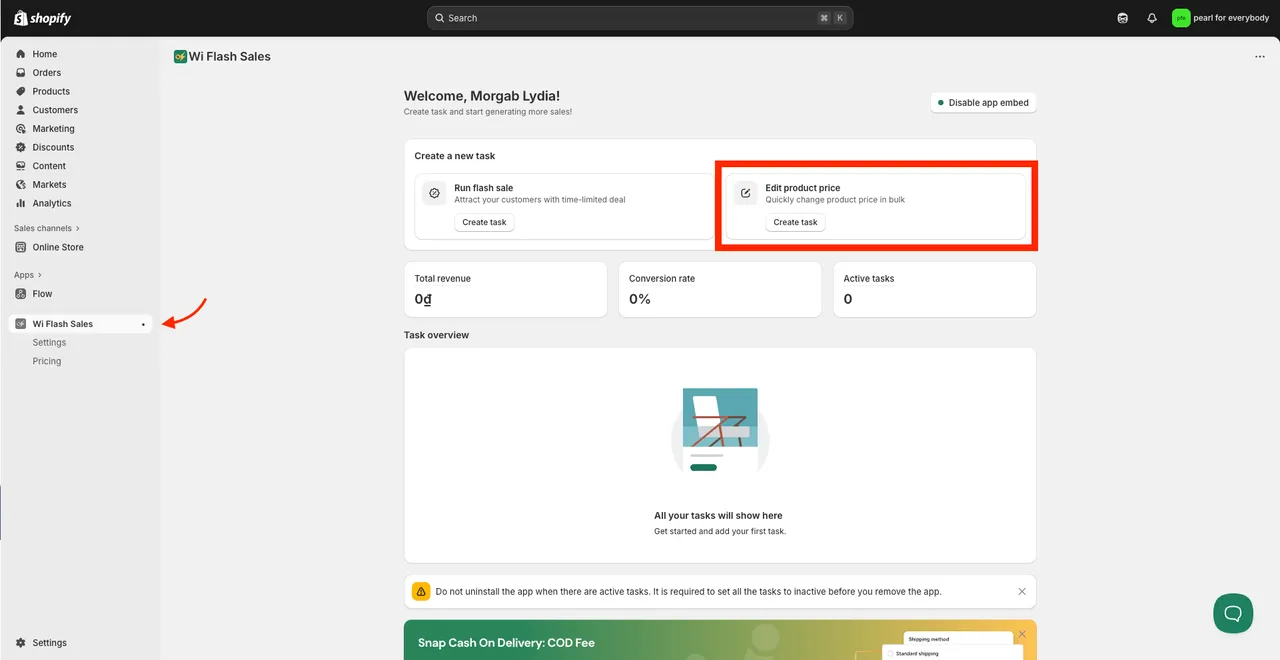
Open the app. On the dashboard, find the Edit product price card and click Create task.
-
In Task info, enter a Name and set the Status to Active.
-
Choose the Target items.
-
Set the change rule to Decrease price, on Price, by amount: €30.
-
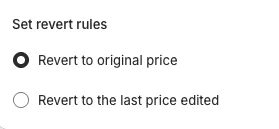
Under Set revert rules, choose what the price returns to when the task ends. Revert to original price restores €100. Revert to the last price edited keeps a price that was edited outside the app during the task.
-
Select One time schedule, set the start date and time, tick Set end date and set the end date and time. Without an end date the price stays reduced until you set the task to Inactive.
-
Save the task. Our advice: after it starts, open one product on your storefront. In most themes it shows €70 with €80 as a strikethrough price.
-
When the task ends and the price is back at €100, clear the Compare-at price field in Shopify admin. The task reverts only the price.
What to know before you choose this option:
- The savings look smaller. Customers see €80 to €70, not €100 to €70. That is the cost of two sales within 30 days.
- The compare-at price stays until you clear it. A Price Edit task on Price reverts only the price. If €80 stays in place and you later lower the price below €80, it shows as a strikethrough price you did not plan.
- A percentage is calculated from today’s price. Decreasing €100 by 30% gives €70, which is 12.5% below the €80 prior price. If you state a percentage anywhere, such as in a promotion banner, state the one measured from the prior price.
- One rule applies to every product in the task. Group products that share the same price and the same 30-day history, or run the task on Specific products.
- No countdown timer, flash sale badge or stock progress bar. These belong to Flash Sale tasks.
Is a discount code a way around the rule?
Section titled “Is a discount code a way around the rule?”Usually not. A code that any customer can use, or one sent to many or most of your customers, is an announced price reduction like any other. “20% off this weekend with code SPRING” is covered.
Only genuinely individual reductions are likely to fall outside the rule: a birthday code for one customer, or a voucher earned with an earlier purchase. In Shopify, a discount code works for anyone who has it unless you restrict it to specific customers or customer segments.
Our advice: use Shopify’s discount codes for individual offers because they fit the job, not to avoid showing a prior price.
What does the rule not cover?
Section titled “What does the rule not cover?”Shopify’s Help Center lists cases where the rule might not apply:
- A price change with no announcement of a reduction. A Price Edit task that lowers the price of a product with no compare-at price is an example in our reading, as long as no banner, badge, collection name or email presents it as a sale.
- Genuinely personalised price reductions, as described above.
- Comparisons with a recommended retail price or a competitor’s price. These must be clearly explained and must not look like a reduction of your own price. A bare strikethrough price reads as a reduction.
- General claims such as “best price”, when they do not suggest a reduction.
- Conditional offers such as “30% off when you buy three”.
Countries can also set their own rules for goods that spoil quickly, for products that have been on the market for less than 30 days, and for a reduction that increases step by step within one sale. National law may also require a period longer than 30 days.
Does the rule apply to stores outside the EU?
Section titled “Does the rule apply to stores outside the EU?”Yes, when you sell to customers in the EU or EEA. The rule follows the customer, not the location of the business.
If your primary market is outside the EEA and you sell to the EEA through Shopify’s international sales tools, Shopify may hide compare-at prices for those customers. The Hide compare-at setting is described in the Shopify Help Center article. Our advice: view a product as an EEA customer before the sale. If the compare-at price is hidden, that customer sees no strikethrough price, so check whether a badge or banner still announces a reduction to them.
Other countries, such as the UK, have their own rules on reference prices. Meeting the EU rule does not settle those.
Frequently asked questions
Section titled “Frequently asked questions”Does the EU 30-day lowest price rule apply to my Shopify store?
Section titled “Does the EU 30-day lowest price rule apply to my Shopify store?”The EU 30-day lowest price rule applies when you sell goods to customers in the EU or EEA and announce a price reduction. That includes businesses based outside the EU that sell to customers there.
What compare-at price should I enter on Shopify for a sale in the EU?
Section titled “What compare-at price should I enter on Shopify for a sale in the EU?”Enter the prior price: the lowest price you charged for that variant in at least the 30 days before the sale. Enter the sale price in Price. This is the guidance in the Shopify Help Center.
What compare-at price does a Flash Sale task set?
Section titled “What compare-at price does a Flash Sale task set?”With the discount on Price, a Flash Sale task sets the compare-at price to the price the product had just before the task started. A compare-at price the product already had is replaced during the task and returns when the task ends.
Can I run a weekly flash sale on the same products in the EU?
Section titled “Can I run a weekly flash sale on the same products in the EU?”A weekly flash sale on the same products cannot show your usual price as the strikethrough price. From the second week on, the lowest price of the last 30 days is the sale price of the week before, and that is the price the rule asks you to show.
Does a Shopify discount code fall under the 30-day rule?
Section titled “Does a Shopify discount code fall under the 30-day rule?”A Shopify discount code usually falls under the 30-day rule. A code that any customer can use, or one sent to many or most of your customers, is likely covered. Only a genuinely individual reduction, such as a birthday code for one customer, is likely to fall outside it.